
If your category or product data (for example prices, images or stock levels) is not up to date, there can be several reasons for this.
The interface to your shop system is not working
Please check in the admin whether the interface to your shop system can still be reached. To do this, go to "Settings" › "Shop Interface" and click "Actions" › "Ping".
The response should look like this:
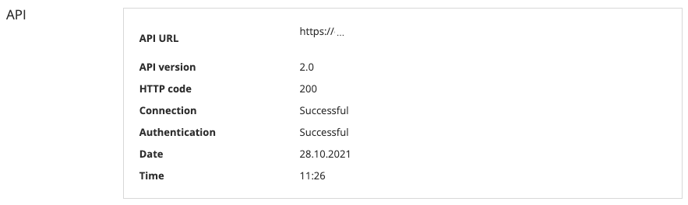
If you get an error message instead, please check the following first:
Error messages:
Error code 120: Authentication failed
Please check whether your Shopgate credentials are entered correctly in the plugin settings in your shop backend.
What are my Shopgate credentials?
Another reason for this error can be an incorrect server time. In this case, please contact your server administrator.
Error code 301: Redirect
Please check the URL of the interface to your shop system. Make sure the protocol, e.g. "https", is correct as well.
How do I change the shop URL for the plugin connection?
Error code 404: Not found
Please check whether the Shopgate plugin is still installed and set up correctly in your shop system.
Error code 500: Server error
In this case, please check the logs on your server. Changes or updates to the shop system are often the cause.
If needed, please contact us at support@shopgate.com.
No automatic import takes place
Please check when the last import took place. You can find this information in the admin under "Settings" › "Shop Interface".
If your shop's catalog is loaded via a CSV, FTP or JSON import, you can find your imports under "Settings" › "Imports" instead. To learn how to check the status and logs of an import there, read the article How can I check import logs?

If no import has been run recently, you can start one manually via "Actions" › "Start import".
If the import stops unexpectedly, there can be several reasons for this.
The Shopgate plugin does not have sufficient access rights on your server
For some shop systems, write permissions must be granted to the Shopgate plugin via your FTP server. After changes or updates, these write permissions may have to be granted again. To check whether the files still have the necessary permissions, please follow these steps for your shop system. You can usually find this information in the section "Installing the Shopgate plugin".
The file structure on your server has changed
If access rights are not the problem, the file directory may have changed after an update or server changes. To change the file directory in the plugin settings, please follow these instructions:
- Open the settings of the Shopgate plugin in your shop backend. The Shopgate settings (shop number, customer number, alias, URL, etc.) should be fully filled in. Keep this page open in your browser until all steps are completed.
- On your FTP server, go to ".../shopgate/shopgate_library", create a backup of the "config" folder and delete the file "myconfig.php" in the config folder.
- Now go back to the settings page you kept open in step 1 and click Save. A new config folder with the updated file directory is then created in the Shopgate library.
For other shop systems, such as Shopware or xt:Commerce VEYTON, the Shopgate plugin must be reinstalled.
A large part of the product range in the shop system was deactivated or the product IDs have changed
In this case, please contact the support team at support@shopgate.com.
The product data is displayed incorrectly despite a successful import
There may still be outdated data in the shop cache. In this case, please reset the shop cache.
The product data in your shop system is still incorrect
Please check the data in your shop system and start an import manually.
What can I do myself?
Problems with the interface don't appear suddenly without some outside influence. So ask yourself these questions:
- Since when has the interface not been working?
- What changes were made during this time?
- Was the shop system updated? In this case, you may be using an outdated version of our plugin, and a newer version may restore compatibility. You can find more information in the section Plugin update.
- Was the PHP version updated? A plugin update can help here as well.
- Were server settings changed? Ask your hosting provider for entries in the server's error logs.
- Was the Shopgate plugin updated? Always test new versions of our plugins in a test environment before using them live. We are happy to support you with this. If a plugin update could still be the cause of a problem, a downgrade of the plugin can help.
Plugin update
In some cases (see above), an update of the Shopgate plugin can fix problems with the interface.
You can find new plugin versions either in the plugin store of your shop system (e.g. Shopware) or on GitHub. The plugins on GitHub are linked in the respective support article. Check the changelog of a plugin to see whether the changes could affect your problem (e.g. update for Shopware 5.7 support).
Before updating, always check whether you are using a standard plugin. If Shopgate has customized your plugin, you can tell by a "-1" in the plugin version. The version is shown in the ping. A customized version would be, for example, "2.9.93-1". In this case, please contact us so that we can send you an individual plugin.
After the plugin update, you can run a ping again, start the import and then clear the cache.
If you have any questions, feel free to contact us.