
Important: The permission routes mentioned in this article are only fully available from the following versions:
- App version: 11.18.0
- Theme version: 7.30.1
Overview of the standard app permissions
| Permission | Usage / use case | Standard request |
| Tracking (iOS only) | Requesting the Apple Advertising ID; controlling trackers (Google Analytics, Klaviyo, etc.). | On the first app launch. |
| Push | Sending marketing and transactional push notifications. | On the first app launch. |
| Camera | Using the barcode scanner for product search. | When the scanner is opened for the first time. |
| Location | Showing stores in the store finder. | When the store finder is opened for the first time. |
| Background location |
Geofencing (e.g. via Braze) to send push notifications when a user enters a location. Attention: Requires a special review & video demo for Apple/Google. |
No standard request. |
Alternatives to the standard request
Depending on the use case, it can make sense to build individual requests instead of the standard requests. Depending on the use case, Shopgate lets you request permissions flexibly in the following ways:
1. Soft opt-in
Instead of showing the system dialog right away, you display an appealing intermediate page with additional explanations. Only when the user agrees here does the native system request follow. This prevents users from permanently blocking the permission at system level and allows you to ask more than once. Shopgate offers soft opt-ins for push and tracking.
2. Requests via in-app "routes"
You can trigger permissions specifically via links or buttons (e.g. Shopgate widgets or in-app notifications from Klaviyo/Braze). The app behaves intelligently:
-
Not asked yet: The native dialog appears.
-
Already allowed: A message appears: "Permission has already been granted".
-
Already denied: A message appears: "You have denied the permission, please go to the settings" including a direct link to the OS settings.
Tip: If supported, filter the display of the corresponding buttons/links to customers who have not granted the permission yet.
The following routes are available for requests:
-
/permissions/push– Requests push permission. -
/permissions/camera– Requests camera access. -
/permissions/tracking– Requests tracking permission (iOS). -
/permissions/location– Requests location access (while using the app). -
/permissions/location_background– Requests background location
Important note on background location: Google and Apple review access to the location in the background very strictly. That's why this access is not possible by default but is set up individually for your app. If you are planning this (e.g. for geofencing), please contact our support. We'll help you prepare the necessary justifications and video demos for the app stores.
Where do I add the routes?
In the Shopgate CMS, you can add the routes with the "Custom path" option as follows:
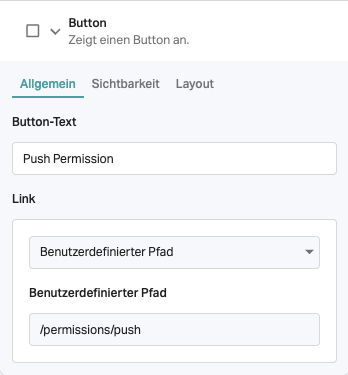
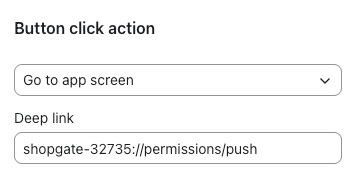
In external marketing tools such as Klaviyo (e.g. via in-app message), please use the complete app deeplink with the individual app identifier "shopgate-xxxxx://" (you can find it in the deeplink generator):
More information
Developers can find more information in our developer documentation.
If you have any questions, feel free to contact us at support@shopgate.com