
With adaptive icons, your app icon looks like the icon of a native app on every Android device. You upload your logo and the background separately. Android combines them and crops the icon to the shape the device uses, whether round, rounded or square.
Legacy or adaptive?
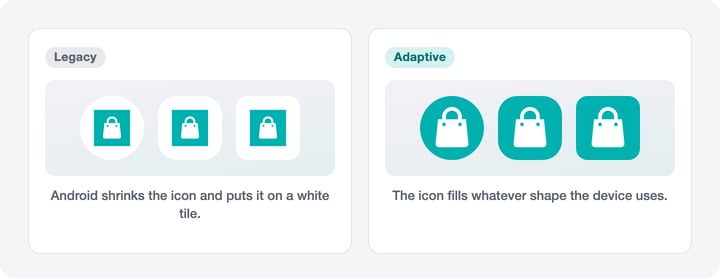
Android can't adapt a classic icon (legacy) to the shape of the device. It shrinks the icon instead and puts it on a white tile. An adaptive icon fills the whole shape.
How an adaptive icon is built
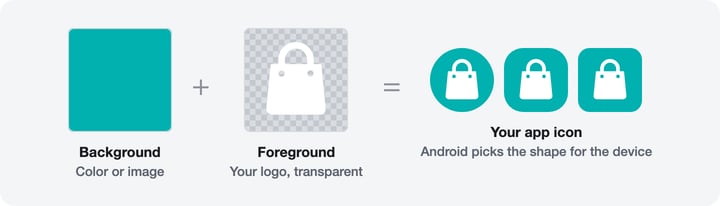
- Background: a color or an image that fills the whole icon area.
- Foreground: your logo on a transparent background. It is placed in the center of the background.
- Monochrome (optional): a one-color version of your logo for themed icons from Android 13.
Setting up an adaptive icon
Log in to the Shopgate admin and go to Design › Logos. You'll find the Android area in the App Icons section. The numbers in the diagram match the steps below.
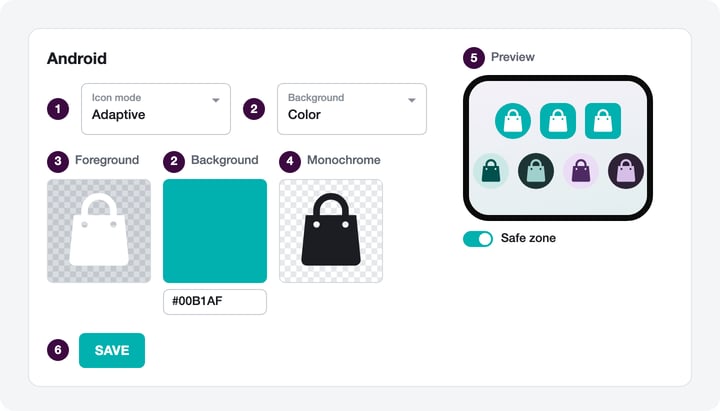
- Under Icon mode, select Adaptive.
- Under Background, choose whether you want to use a Color or an Image. Then pick the color or upload the image (PNG, 512 × 512 px, no transparency).
- Under Foreground, upload your logo (PNG, 512 × 512 px, transparent background).
- Optional: under Monochrome, upload a one-color version of your logo (PNG, 512 × 512 px, transparent background).
- Check your icon in the Preview. It shows the icon in every shape and as a themed icon. The Safe zone switch shows whether your logo stays fully visible in every shape.
- Click Save.
Your new icon appears with the next version of your app. Please let our app management team know at support@shopgate.com. The iOS icon stays the same.
Tips for the foreground
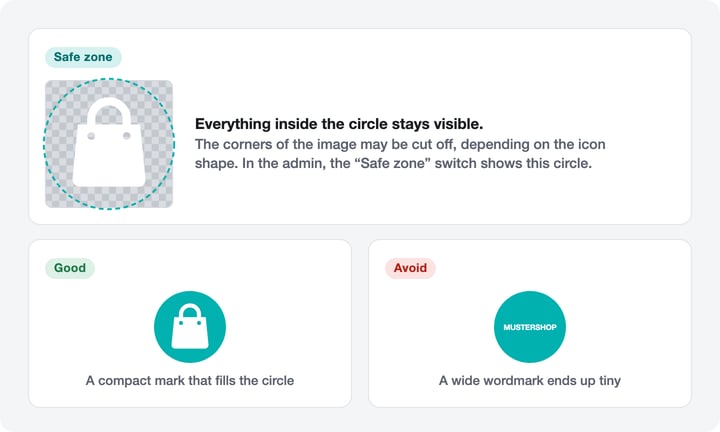
Depending on the device, Android crops the corners of the icon by different amounts. Everything inside the circle always stays visible. A compact mark works best. A wide wordmark ends up very small.
Monochrome icon for themed icons
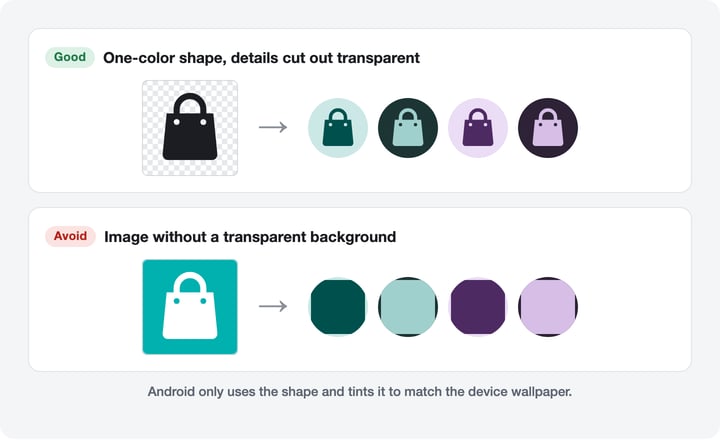
From Android 13, users can turn on themed icons. All icons then appear in the colors of their home screen. Android only uses the shape of your monochrome icon, not its color.
- Use the same mark as in the foreground, as a one-color silhouette.
- The background must be transparent. Otherwise Android only shows a solid shape.
- Cut out text and details as transparent areas. Otherwise they won't be visible.
Without a monochrome icon, Android keeps showing your app icon in color when themed icons are on.