
You can only accept payments with PayPal Checkout if you have a PayPal business account. If you do not have a business account yet, please sign up here.
With PayPal Checkout, the following payment methods are available to you:
- PayPal
- Invoice via Ratepay
- Credit card
- SOFORT bank transfer
- SEPA direct debit
- eps
- iDEAL
In the PayPal Developer Dashboard, set up an app for your shopping app under "Apps & Credentials".
If PayPal (Plus) is already set up as a payment method, you need to delete it first.
Information required for the configuration
| Account information | Description |
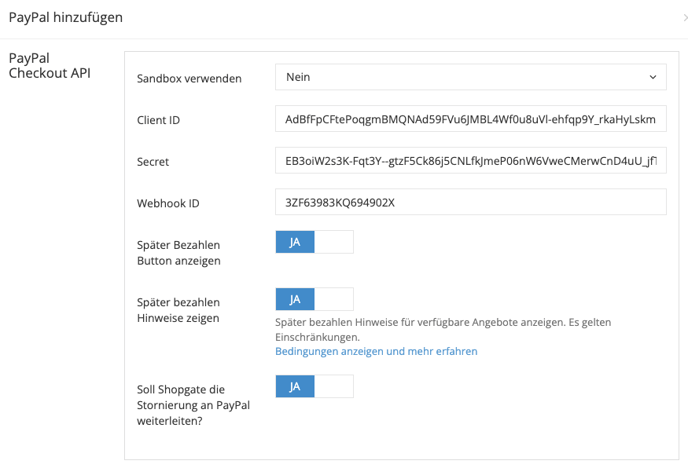
| Use sandbox | Choose whether the PayPal sandbox or live interface should be used. |
| Client ID & Secret | You can find the REST API credentials for your PayPal account in the details of the app you want to use for Shopgate: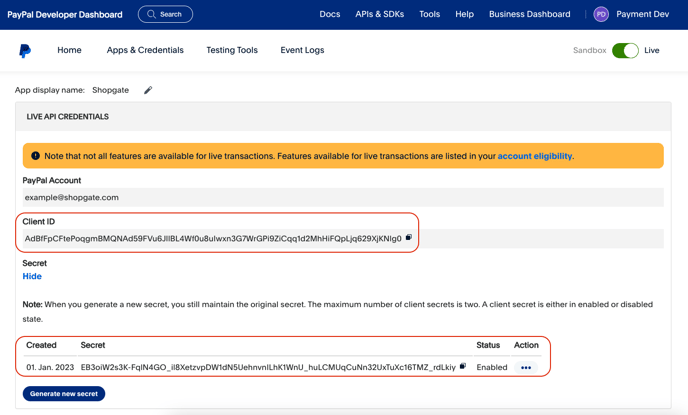 |
| Webhook ID | Before you can enter the Webhook ID, you first need to set up a webhook for the app. |
| Show Pay Later button | You can decide whether the "Pay Later" button should be shown at checkout.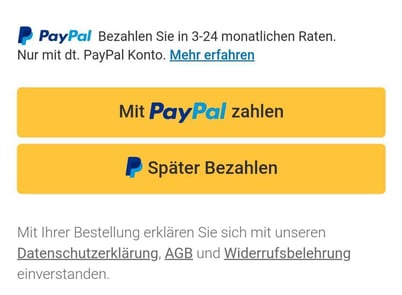 |
| Show Pay Later messages | You can decide whether a message about the "Pay Later" button should be shown. You can find more information here. |
| Should Shopgate forward cancellations to PayPal? | You can decide whether Shopgate should forward cancellations to PayPal or not. |
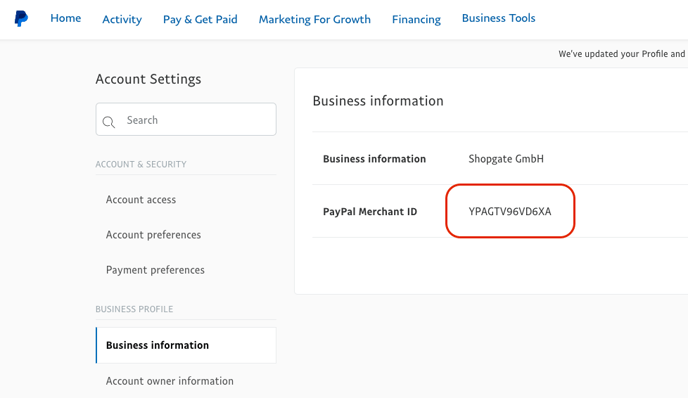
| Merchant ID (only required for invoice) | You can find the Merchant ID in the PayPal backend in the menu under "Account Settings".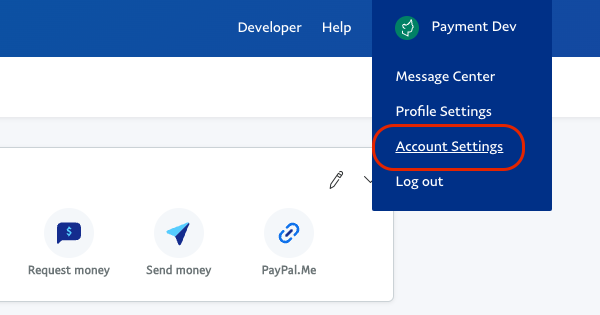
|
| Display mode (only required for credit card) | You can decide whether users can enter their credit card details directly in an input form or whether PayPal's "Debit or Credit Card" button should be shown. Input form (hosted fields): 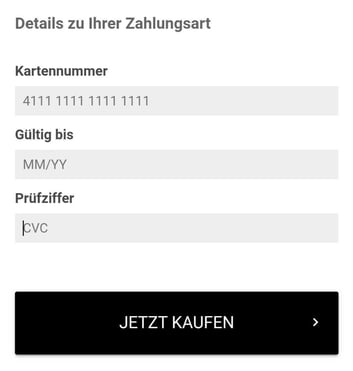 PayPal button: |
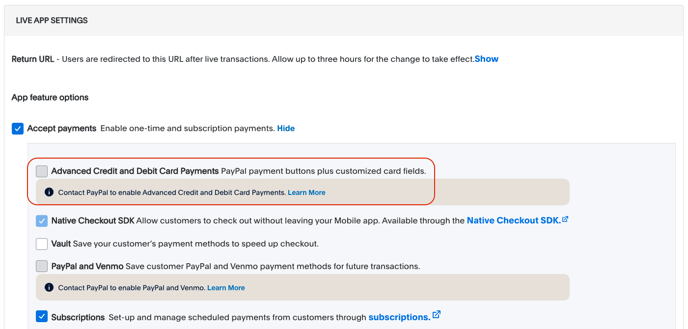
| Enable "Advanced Credit and Debit Card Payments" in PayPal (only required for credit card) | In the PayPal Developer Dashboard, select the app whose credentials are used for Shopgate. Under "App feature options", click "Advanced options" under "Accept payments".
|
Setting up PayPal Checkout
Adding PayPal Checkout as a payment method
To offer PayPal Checkout as a payment method in your app, please follow these steps:
- Log in to your Shopgate Admin.
- Click "Settings" in the menu and then select "Payment Methods".
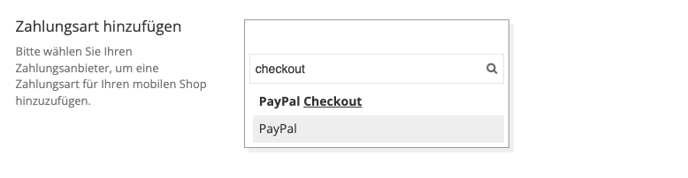
- Click the payment method search field, type "checkout" and then select "PayPal" from the list.
- Enter your "PayPal Checkout" details in the pop-up window. Your account information is checked automatically.
Setting up a webhook in PayPal
Status updates for a "PayPal Checkout" payment are sent via a webhook. This ensures that you see the correct payment status. To set up this webhook, please follow these steps:
- Go to "My Apps & Credentials" in your PayPal Developer account: https://developer.paypal.com/dashboard/applications/live
- In the "REST API apps" section, select the app whose credentials you want to use for Shopgate.
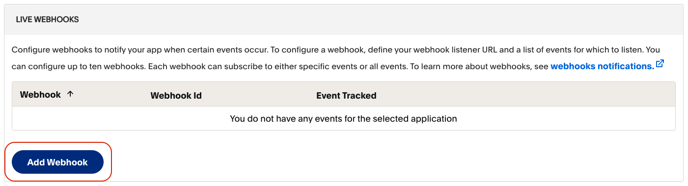
- In the "LIVE WEBHOOKS" section, add a new webhook by clicking "Add Webhook".
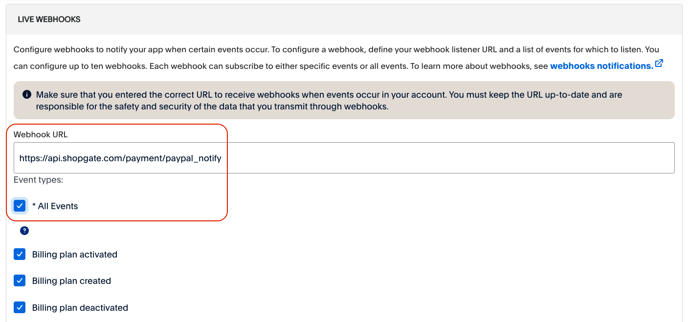
- Copy the URL below and paste it into the "Webhook URL" field. Select all event types and then click "Save".
https://api.shopgate.com/payment/ppplus_notify
- If you see the following page, the webhook has been created successfully.
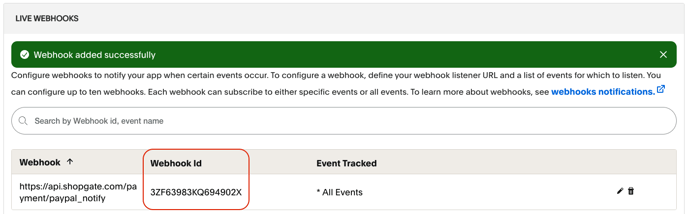
- Enter the Webhook ID in the Shopgate merchant area.
Setting up additional payment methods
To use additional payment methods, please add PayPal first. The other payment methods are based on this integration and cannot be used on their own.
Invoice via Ratepay
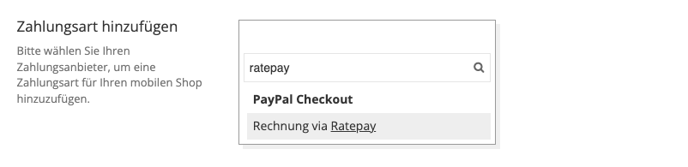
- Click the payment method search field, type "ratepay" and then select "Invoice via Ratepay" from the list.
- Enter your Merchant ID in the pop-up window. Optionally, you can add a note about customer service.
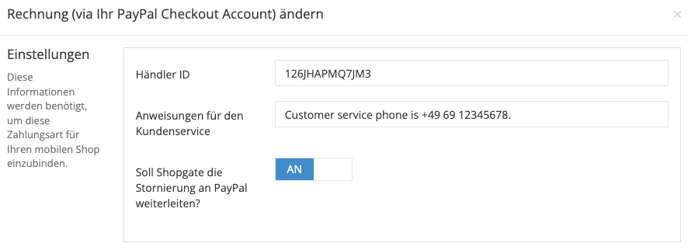
- Then click "Save".
Credit card
- First, the option "Advanced Credit and Debit Card Payments" must be enabled in the PayPal developer area.
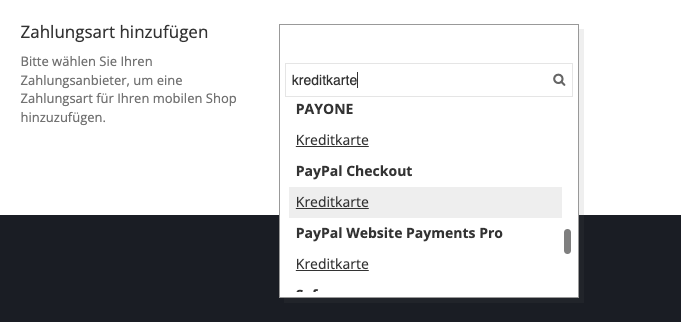
- Switch to the Shopgate merchant area and, under "Settings" › "Payment Methods", click the payment method search field, type "credit card" and then select "PayPal Checkout → Credit card" from the list.
- In the configuration, you now need to select the display mode.
- Once you are done, click "Save" to apply your details.
Other payment methods
All other payment methods are added via the payment method search field. You only need to specify whether cancellations should be forwarded to PayPal.