
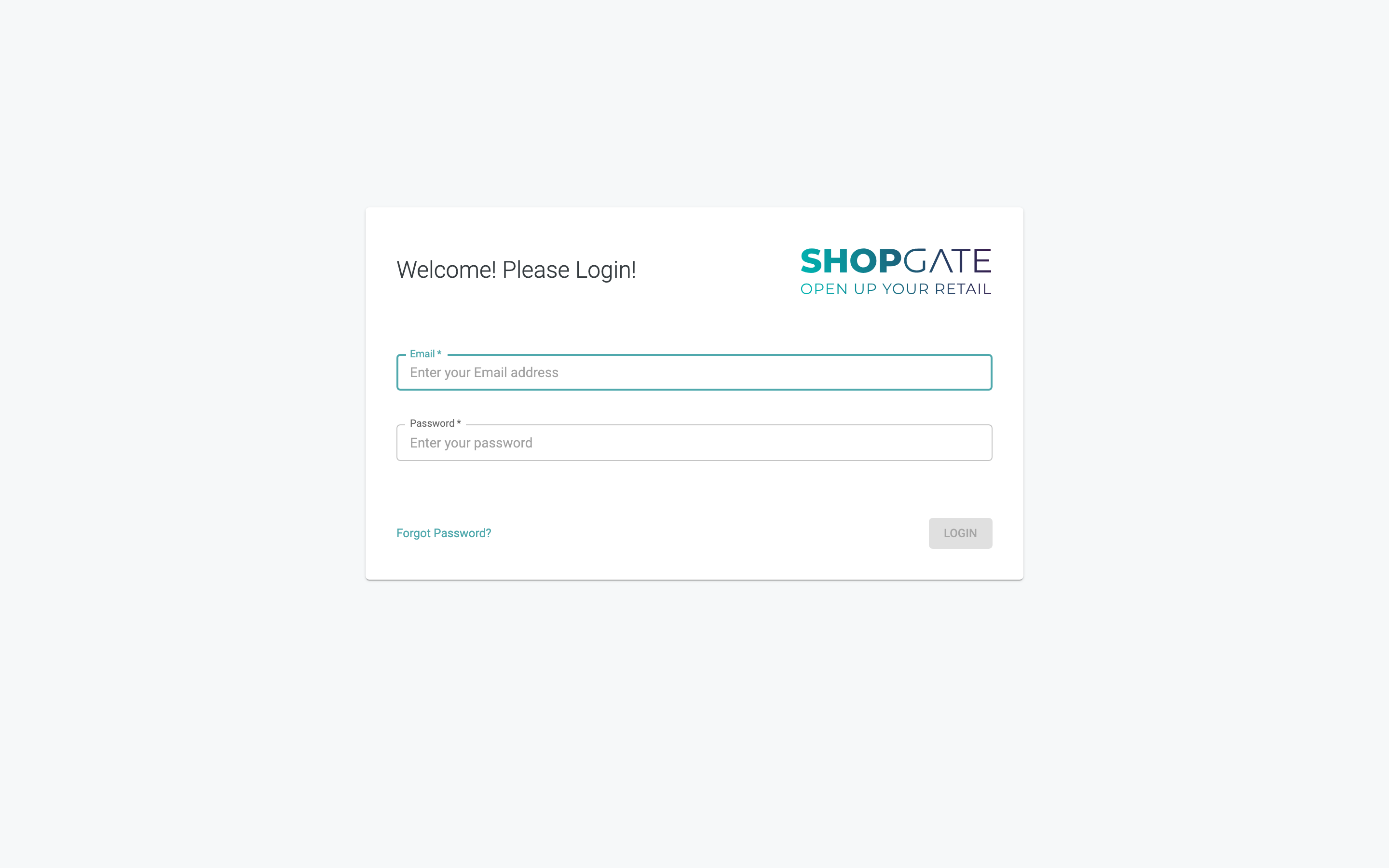
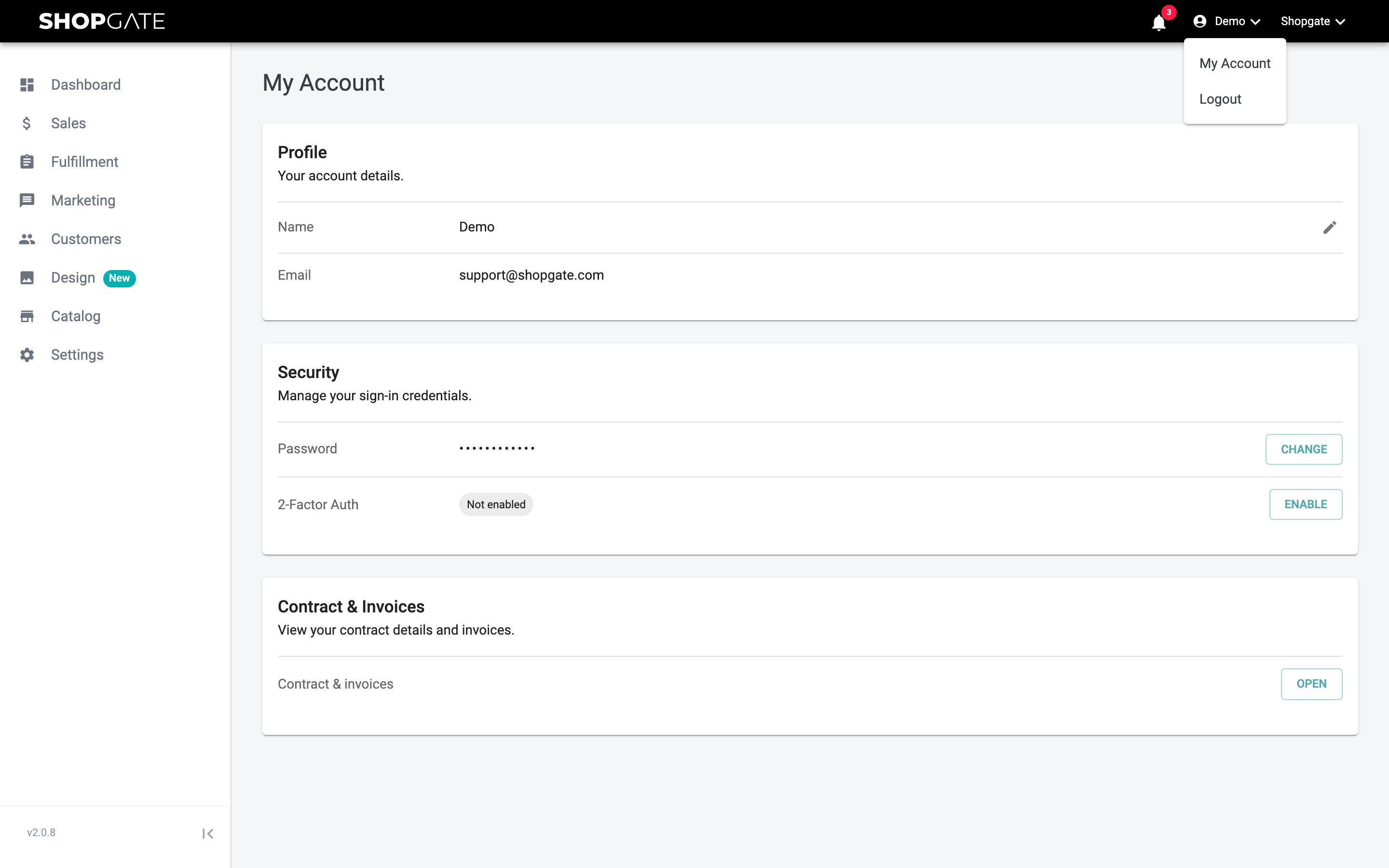
You can reach the Shopgate Admin at app.shopgate.com. In this article, you will learn how to log in, what to do if you have forgotten your password, and which functions are available to you in the header of the admin.
Logging in
- Enter your Email and your Password.
- Click Login.
If your email or password is incorrect, the message "Login failed. Invalid Email or password." appears.
Entering a two-factor code
If you have enabled two-factor authentication, the admin asks for your 2-Factor Code in addition to your password. Open your authenticator app, enter the code shown there and click Login.
If you do not have access to your authenticator app, click Use a recovery code instead and enter one of your recovery codes. Each code works only once. After you log in, the admin automatically opens My Account so that you can set up two-factor authentication again. Click ← Use authenticator code instead to return to entering the code from your app.
To learn how to set up two-factor authentication, see the article My Account.
Forgot your password
- On the login page, click Forgot Password?.
- Enter your email address and click Submit. You will receive an email with a reset link.
- Open the link. On the Set Password page, enter your new password twice and click Submit.
- Click Login to log in with your new password.
The new password must meet the password requirements shown on the page. The link is valid for 48 hours and can only be used once. If it has expired, request a new one.
Selecting and switching merchants
If you have access to several merchants, choose the merchant you want under Select a Merchant after logging in. If you only have one merchant, the admin opens it directly.
To switch merchants, click the name of the current merchant in the top right. A list of your merchants opens. Use the Search field to find a merchant quickly; press Enter to open the first match.
If the message "This user is inactive" appears after you log in, contact your company's administrator.
The header
| Element | Function |
|---|---|
| Bell | Opens the Shopgate product news with new features and announcements. A red number shows how many messages you have not read yet. At the bottom of the news panel, you will find the links Roadmap and Status. |
| Your name | Opens the user menu with My Account and Logout. |
| Merchant name | Switches to another merchant (only if you have several merchants). |
To chat with Shopgate Support, click the speech bubble that appears in the admin after you log in. You will find other ways to contact us in the article Contact Support.
Unsaved changes
If you leave a page on which you have not yet saved your changes, the admin asks: "You haven't saved your changes!" Click No, stay to return to the page, or Yes, leave to discard your changes. This also applies when you switch merchants.
Session expired
If you do not work in the admin for a longer time, your session expires. The admin then shows the window "You have been logged out." Log in again there, including your code if two-factor authentication is enabled. You can then continue working on the current page. If you have the admin open in several tabs, logging in again applies to all tabs.
Logging out
Click your name in the top right and select Logout.