
App download
The In-Store App for iOS and Android offers the following advantages over the web interface:
- Push notifications for new orders
- Login via Face ID/Touch ID
- Clienteling functions (e.g. assortment and customer overview)


Web interface
The merchant area lets you handle fulfillment without any additional device. Your staff simply log in to the merchant area on existing computers in the store. You can find the fulfillment Workbox under Fulfillment › Workbox. Your staff do not need any additional admin permissions to access it. Fulfillment permissions for the store are sufficient.
Overview
The app respects our flexible roles & permissions system. Depending on the permissions assigned, certain functions described in this article may therefore not be visible. Simply set up a new account for your staff in the merchant area and assign the permissions per store. You can find out how to create staff accounts here. The availability of functions depends on your contracted scope of services. If you have any questions about this, please get in touch with us.
Important: Please note that staff are logged out after 18 hours of inactivity for security reasons. If you use a device with biometric login (e.g. Apple Face ID), you can also use it to log in to the app. After your first login, the app asks whether you want to use biometric login.
System requirements of the app
| Device recommendation for iOS |
Min. iOS version: 12.0 Recommended devices: all devices that still receive new major iOS versions |
| Device recommendation for Android |
Min. Android version: 8.0 Android devices are much more fragmented than Apple devices. That is why there is no dedicated list of supported devices. We have tested the app with the most common Android smartphones and tablets. These include in particular Samsung devices from 2018 onwards (e.g. Samsung Galaxy S9/10/20/21 or Galaxy Tab S4). The devices must have at least 2 GB of RAM. If you use a different device, please get in touch with us. We will check whether we can guarantee support for this device. |
| Supported printers |
Others on request |
| Supported Bluetooth scanners |
On request |
Functions
Overview
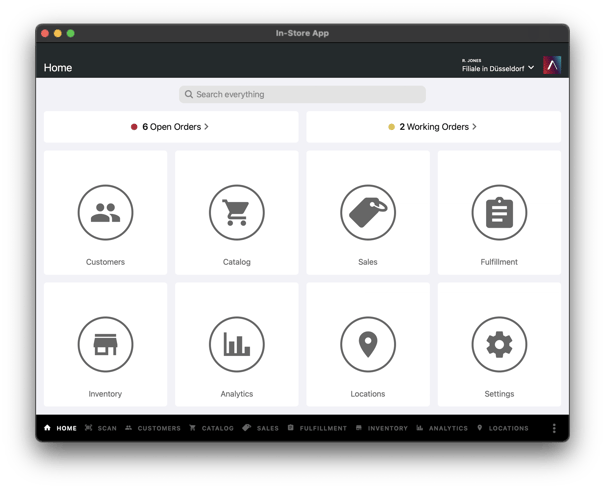
This page is the home page of the app. From here, you can access all app functions enabled for you as well as all open orders with a single tap. In the top right, you can also switch between the different merchants and/or locations enabled for your account.
Global search
The global search on the home page lets you search all areas of the app at once. The search finds:
- Orders
- Fulfillment orders
- Products
- Customers
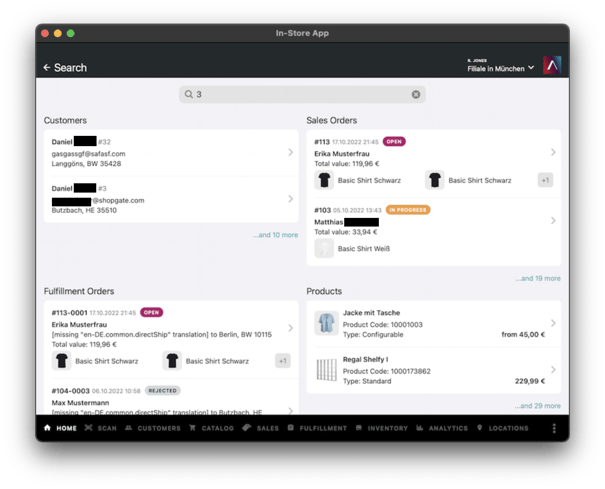
The search always shows the first two entries. The link below them takes you to the full list.
The search automatically takes the app user's permissions into account. For example, only users with access to customer data will find customers in the search.
Global barcode & QR code scanner
The app offers a barcode & QR code scanner. It can be reached from every page of the app in the bottom menu. This function makes it easier to find products, orders or customers in the app. Simply scan a product's barcode, and you are taken to the product page, for example to check the stock in the warehouse.
The scanner can read the following codes:
- Barcode
- QR code
The scanner searches the following fields for the content of the code:
- Products
- ProductCode
- SKU
- EAN
- Other identifiers
- Orders
- Order number
- External order number
- Customers
- Customer number
- External customer number
The app user's permissions are automatically taken into account. For example, only users with access to customer data will find a customer when scanning a customer card.
Fulfillment Workbox
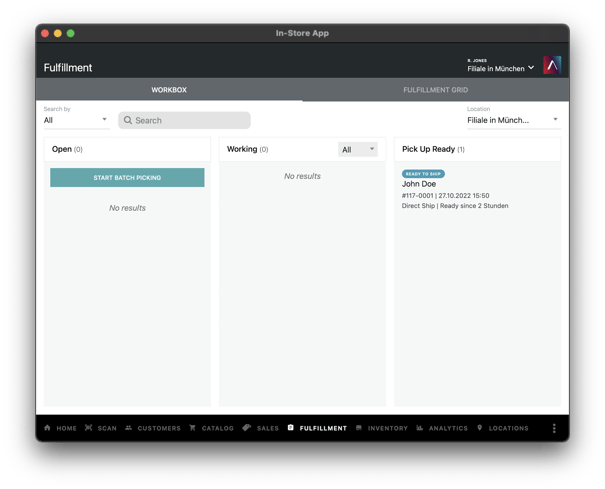
In the Workbox, your staff process new orders in the store. The push notification for a new order links directly to that order, so your staff can process it efficiently.
In the overview, you and your staff can see all orders in their current status at a glance. Orders are sorted by age (oldest first), and the age of an order is shown with a colored icon. Orders in "Open" should be processed as quickly as possible. Orders in the "In Progress" column are currently being packed. Orders in "Ready for pickup" are either currently being collected ("Checked in") or waiting for the customer to arrive ("Ready"), depending on their status.
Orders can be searched and (if you have access to several stores) filtered per store. With the 🕓 icon at the top of the "Open" column, you can activate orders that only become active at a later time. This is used together with enabled pickup windows.
Picking via camera scanner
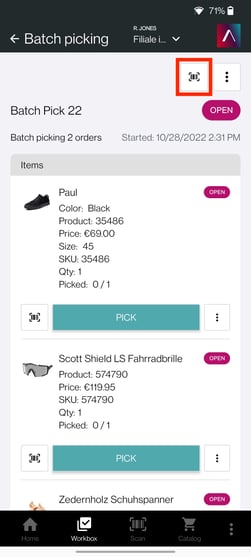
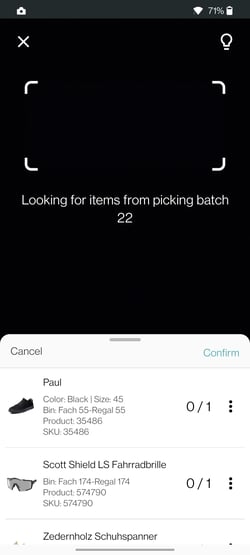
The app supports scan-based picking. After you select the scanner, the device camera is activated. During scanning, you still see the list of items to be packed and their status. The app gives you visual and haptic feedback with every scan. When you have finished scanning, simply tap "Confirm".
Settings
Biometric login
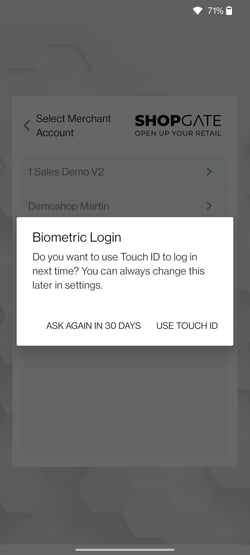
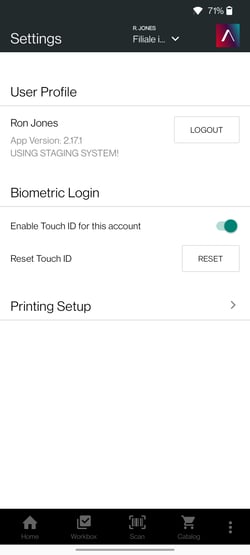
The app supports biometric login, for example with Touch ID or Face ID. This requires the corresponding login to be set up on the device. After your first successful login in the app, you are asked whether you want to enable biometric login. You can also reset, enable or disable the login in the settings at any time.
Setting up printers
The app supports printing packing slips and labels. To do this, simply set up one or more printers on your device (e.g. via AirPrint). Then, in the app under "Settings › Printers", you can configure the printers for packing slips and labels and the number of copies per order. Once this setup is complete, you can print packing slips and labels for orders. Simply tap the 🖨 in an order.
In the printer configuration, you can also enable the "Auto-Print" option. Packing slips and labels are then printed automatically as soon as an order has been set to "Ready". This saves you time with every order.
Another option is printing labels multiple times. This can be helpful if customers regularly pick up more than one package. When this option is enabled, the app asks for the number of labels to print.
External Bluetooth scanner
You can find the manual for the Bluetooth scanner we support here: Manual. Once setup is complete, you can use the scanner without tapping the scanner button first.