
Note: We set up the extension and deployment configuration for you on request. To do so, please contact our support at support@shopgate.com or +49 6033 74700
Caution: Please note that an incorrect extension or deployment configuration may restrict the functionality of your app or make it unusable. Only make changes whose effects you know, and test new extensions and/or updates in test apps beforehand.
Shopgate is not liable for any misconfiguration by you or your employees.
Where can I find the extension and deployment configuration?
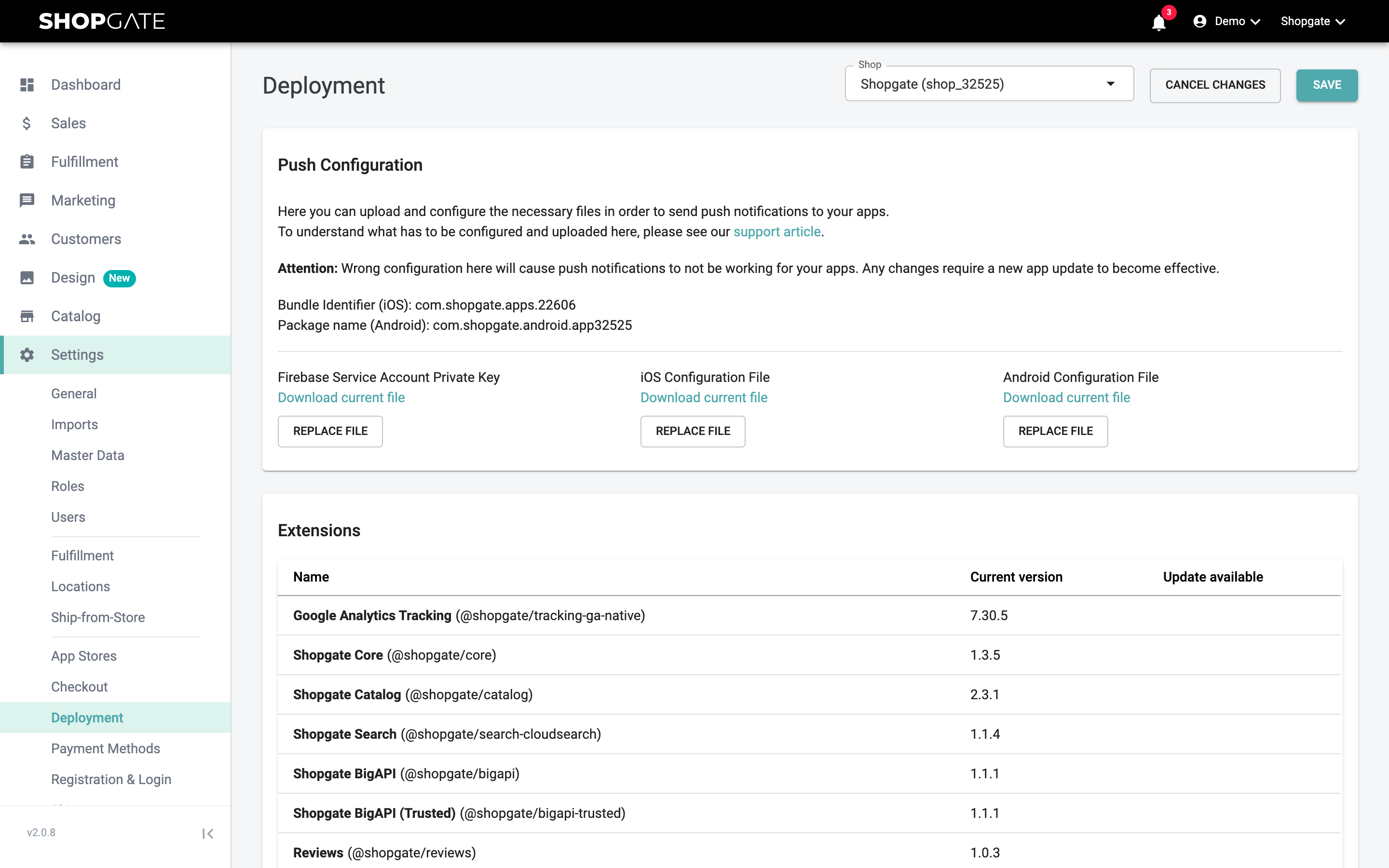
Once the configuration is set up, you can find it in your Shopgate Admin under Settings › Deployment.
What is an extension?
Following the microservice architecture of the app platform, every Shopgate app consists of various extensions; their individual combination makes up your app.
There are different types of extensions, which we briefly explain here:
- Shopgate Extensions: These are marked with @shopgate and are the basic components of your app. As a rule, you should not change Shopgate extensions. The exception are the so-called "themes" (e.g. "Theme iOS"). They contain configurations for styling (colors, icons, shadows), for example, or for optional app features (e.g. the push opt-in).
- Shopgate Project Extensions: These are marked with @shopgate-project and provide functionality that was implemented outside the Shopgate standard. In many cases, these extensions offer individual configuration options that can be adjusted. You can usually find documentation of these extension configurations on GitHub. If you have any questions, please contact our support.
- Partner Extensions: Shopgate works with a broad network of system integrators and technology partners. These partners provide their own extensions to extend the functionality of the app, for example to connect third-party systems. These extensions are marked with the name of the respective partner (e.g. @trbo). Documentation for these extensions can be requested from the respective partner or from Shopgate support.
- Custom Extensions: If you have your own registered developers, they can create and manage their own extensions via the Shopgate Developer Center. These extensions are marked with the name of the development organization.
What can I adjust via the configuration?
Extensions
The configuration gives you full access to all extensions active for your app, their versions and any available updates. You can configure every extension that contains configuration elements yourself. To do this, simply click the small pencil in the extension list.
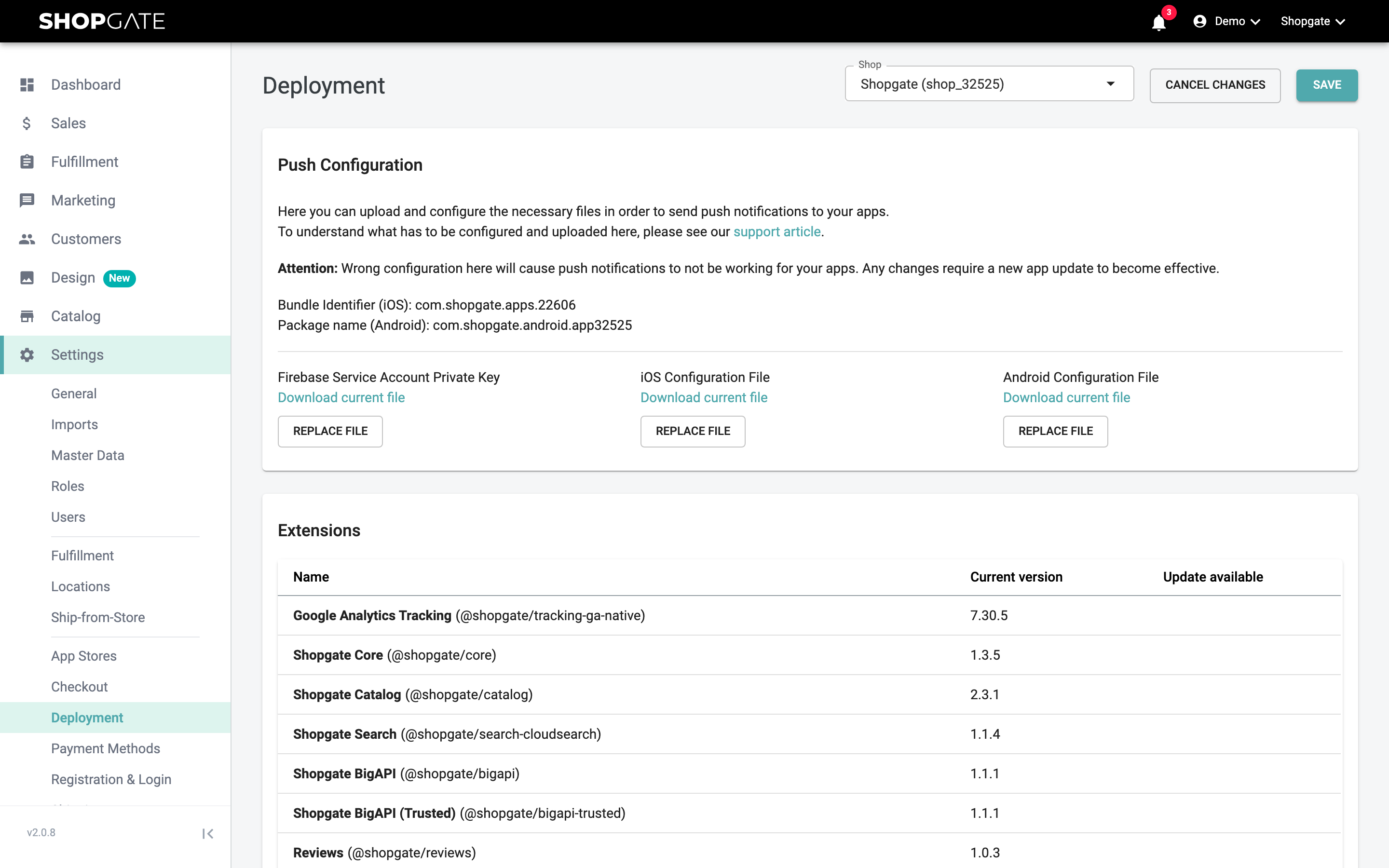
You can then adjust the corresponding configuration in a JSON editor.
Tip: Use the keyboard shortcuts CMD+F or CTRL+F to search the editor or replace specific elements.
Deployment configuration
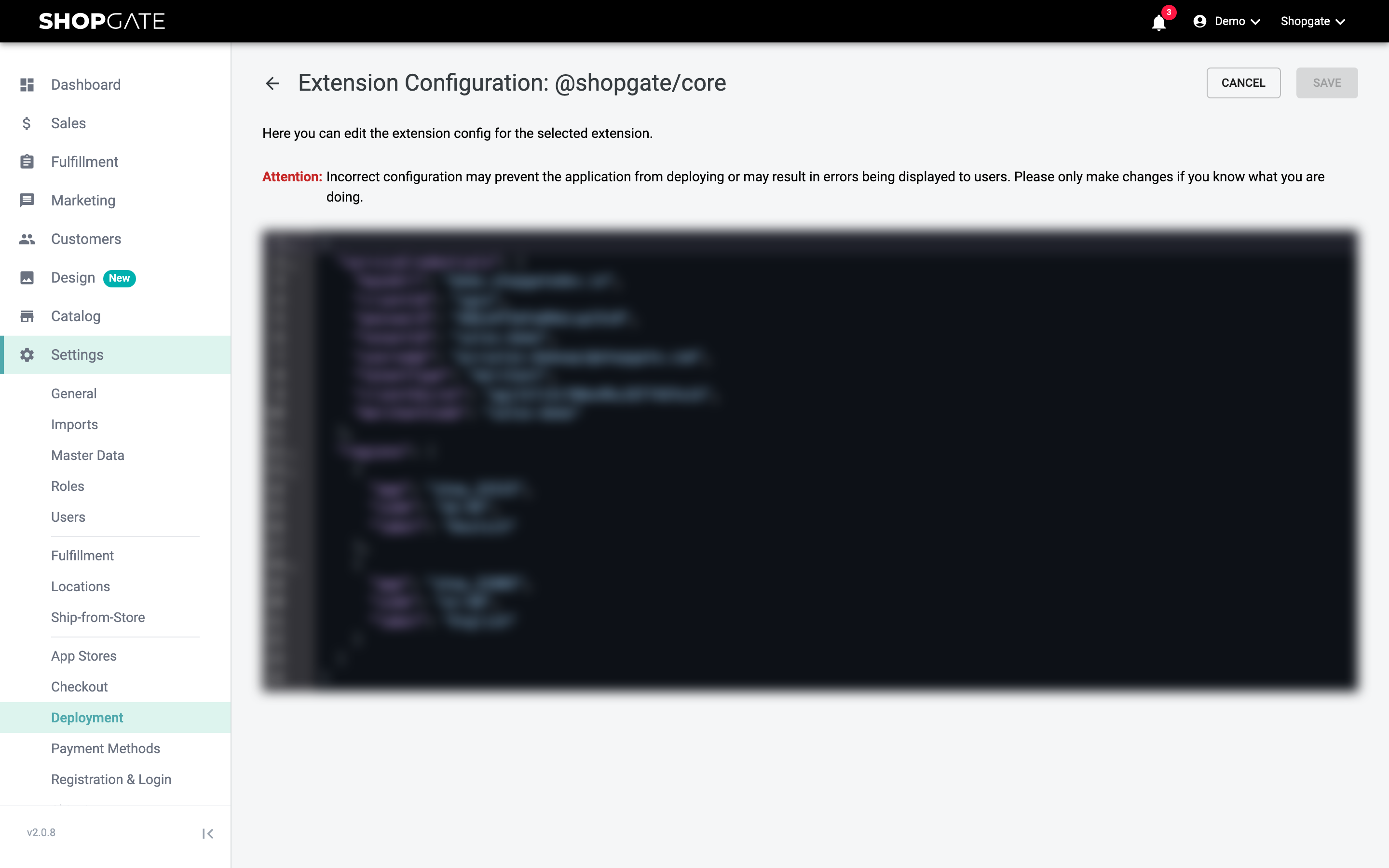
You can also edit the deployment configuration, i.e. the composition of your app. You can use this to deploy custom extensions for your app yourself. Make sure that custom extensions are always compatible with the current version of your apps and have been sufficiently tested. To do this, click "Edit deployment config" below "Recent Deployments":
You can then add or edit your own extension in a JSON editor.
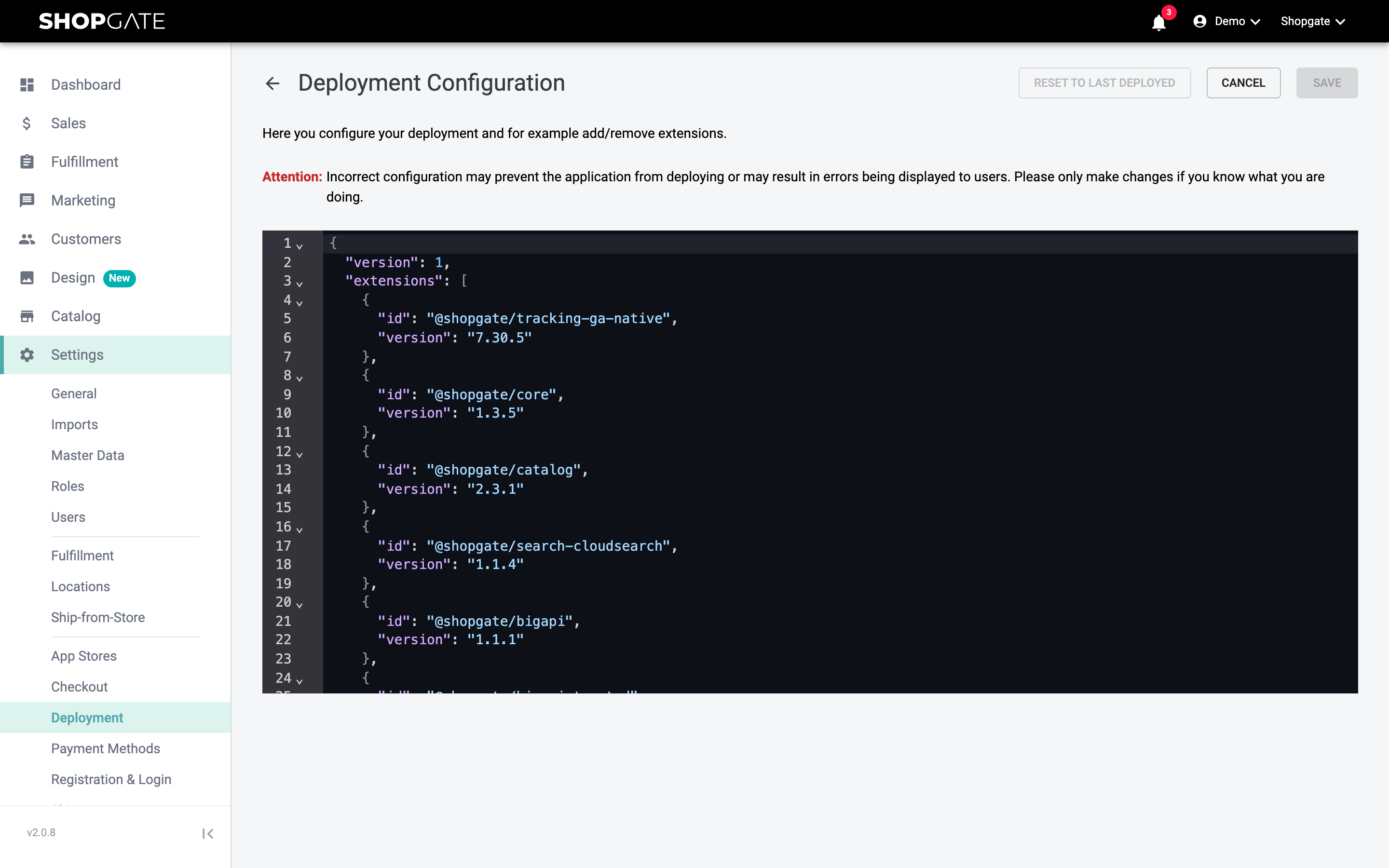
To roll out changes to the extension or deployment configuration to your app(s), you need to start a new deployment. To do this, click "Start new deployment", enter a comment (optional) and click "Deploy".
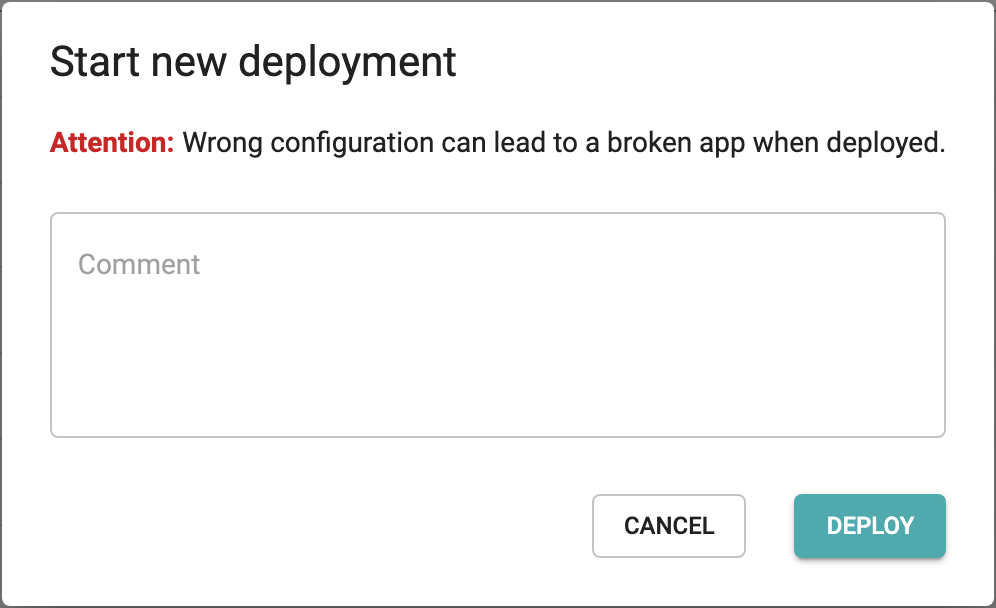
A deployment takes about 5-10 minutes. You can follow the progress at any time under "Recent Deployments".