
Shopgate lets you set up Unzer as a payment service for your apps.
Supported payment methods
At Shopgate, Unzer is available for the markets listed below with the following payment methods:
| Credit card | PayPal | SOFORT bank transfer | |
| USA | Yes | Yes | No |
| UK | Yes | Yes | No |
| Germany | Yes | Yes | Yes |
| Austria | Yes | Yes | Yes |
| Switzerland | Yes | Yes | No |
| Poland | Yes | Yes | No |
| France | Yes | Yes | No |
Setting up Unzer at Shopgate
To activate Unzer as a payment service, simply follow the steps below:
- Log in to your Shopgate admin.
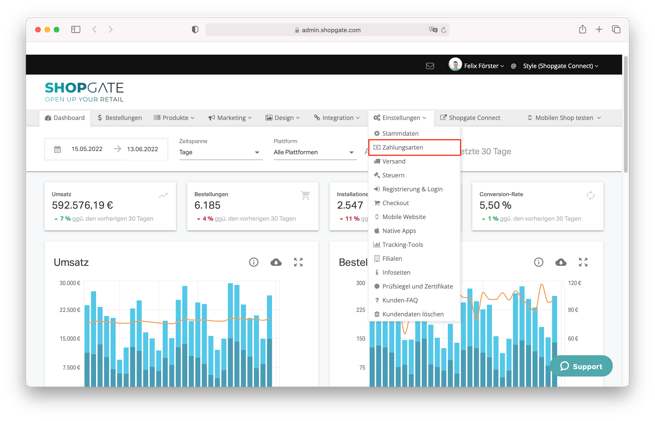
- Click Settings in the menu bar and then select Payment Methods.
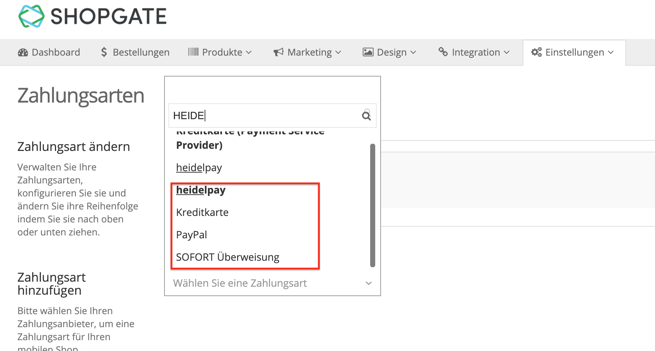
- Go to "Add payment method", click the Select a payment method button and search for Unzer. A list of the payment methods available for Unzer appears, namely Credit card, PayPal and SOFORT bank transfer.
- Select the payment method(s) you want to integrate.
- a) PayPal and SOFORT bank transfer
A separate pop-up window opens for each selected payment method, where you enter your Unzer account details (login, sender, password and channel). Your channel varies depending on the payment method. Optionally, you can select one or all of the additional settings. Finally, click Save and the data you entered is verified automatically.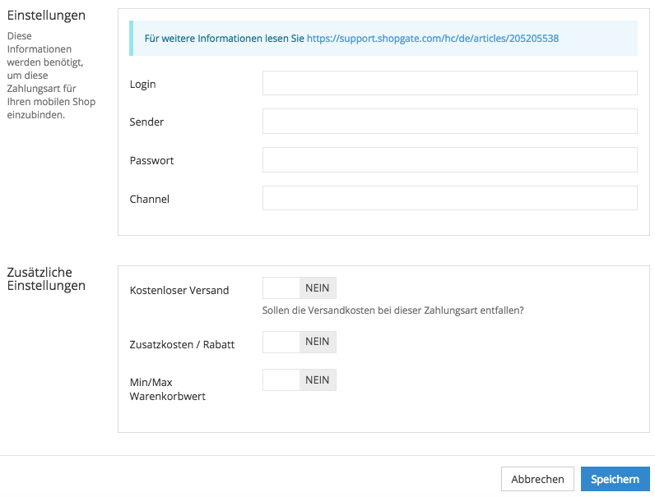
b) Credit card
Enter your Unzer account details (login, sender, password and channel) in the
pop-up window that opens (Where can I find the required information?). Next, select the credit card types linked to your Unzer account and a transaction type. Two settings are available – "Authorize & Capture" (the payment is captured immediately) and "Authorize Only" (the payment is only made after approval). If you need more details, you can find them in the article "Which transaction type should I use?".
You can also adjust the additional settings (optional). When you're done, click Save. Your account details are then verified automatically.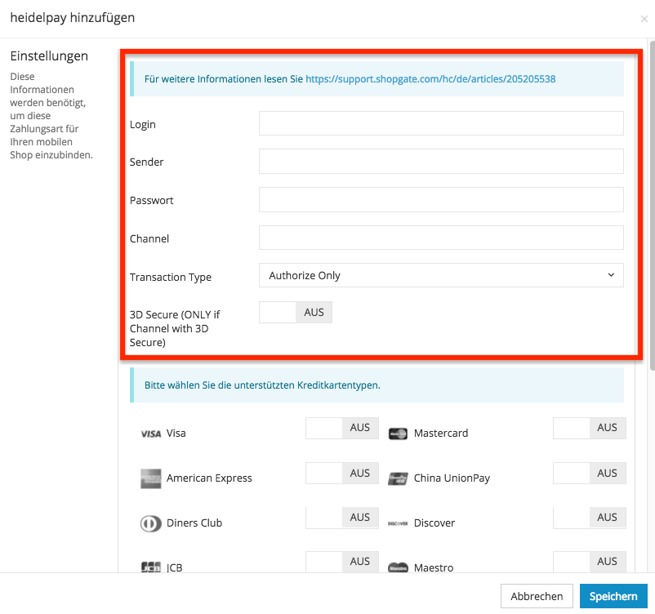
That's it! As soon as you have saved your entries for all desired payment methods, Unzer is activated.
Required information
- Login
- Sender
- Password
- Channel
- Transaction type (credit cards only)
- 3D Secure (credit cards only)
- Credit card types (credit cards only)
Where can I find the required information?
As the owner of an Unzer account, you already have a login, sender and password. You can use this data. If you want to add credit card as a payment method, select the same transaction type and the same credit card types that you have configured in your Unzer account.
When entering the channel, please note that Unzer assigns a separate channel to each payment method.
| Login |
Your Unzer API account username, not your hIP login username. |
|
Password |
Your Unzer API account password, not your hIP login password. |
| Sender |
Your Unzer API sender ID. |
| Channel |
Each payment method (credit card, PayPal and SOFORT bank transfer) has its own channel. |
If you don't have the required data (login, sender, password, channel), please contact Unzer support.