
In today's world, user experience is crucial. With Universal Links (iOS) and Android App Links, you can ensure that your app users are not stuck in a mobile browser, but are taken directly into your app—exactly where the shopping experience is at its best.
This article explains how to activate these features for your Shopgate app.
Why are Universal Links important?
Normally, links to your shop (e.g., from newsletters, social media, or Google searches) open in the smartphone's browser, even if the user already has the app installed. The same applies to product links within your app descriptions. Universal Links change this:
- Higher Conversion Rate: Users are led directly to the target page (e.g., a product) in the app.
- No Detours: The annoying "Open in app?" prompt is eliminated; the transition happens immediately.
- Simpler Handling: Use simple web links in push notifications within external marketing tools like Klaviyo.
Shopgate automatically creates mappings for the homepage, product pages, and category pages. Additionally, you have the option to store individual mappings (e.g., for landing pages) in the Admin area. If no mapping is found, the corresponding web link will simply be opened in the in-app browser.
Setup
Step 1: Download files in Shopgate Admin
- Log in to your Shopgate Admin.
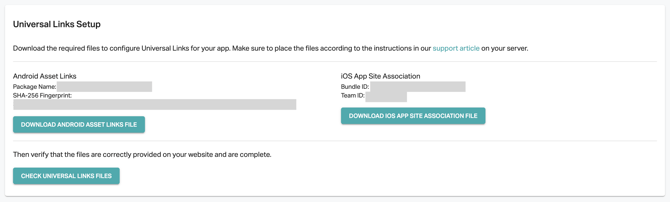
- Navigate to Marketing > App-Link > Universal Links.
- Here you will find two prepared files to download:
- apple-app-site-association (for iOS)
- assetlinks.json (for Android)
Step 2: Store the files in your shop system
To let the operating system know that the app belongs to your domain, these files must be accessible in a specific directory on your server (your web shop).
The files must be accessible under the following paths:
https://www.yourdomain.de/.well-known/apple-app-site-association
https://www.yourdomain.de/.well-known/assetlinks.json
Specifics by shop system:
- On-Premise Systems (e.g., Shopware, Magento):
- Create a folder named
.well-knownin the main directory (root) of your server. - Upload both files into this folder.
- Important for iOS: The file
apple-app-site-associationmust not have a file extension (like .json or .txt).
- Create a folder named
- SaaS Systems (e.g., Shopify): Since you do not have direct access to the directories here, please contact your shop system's support team or your agency.
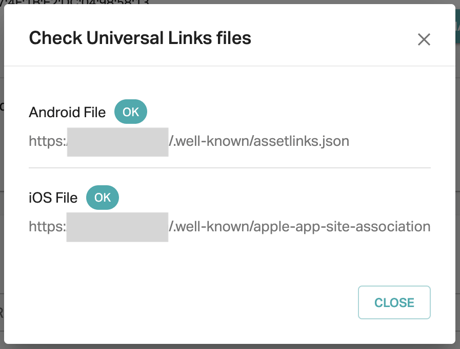
Once you have uploaded the files, you can check for success directly in the Shopgate Admin. Use the integrated tester in the Admin area. Click on "Check" (Prüfen). Our system will validate whether the files are correctly accessible under your domain and stored in the correct format.
Step 3: Individual Mappings (Optional)
You can store custom mappings for items such as landing pages.

FAQ
Monitoring & Tracking
Do you want to know how many users come to your app via Universal Links? We support tracking via UTM parameters. If you use links with UTM parameters in your newsletters or social media posts (e.g., ?utm_source=newsletter&utm_medium=email), these are correctly recorded when the app is opened and can be evaluated in your analysis tools.
Troubleshooting
If the test in the Admin area fails, please check the following points:
- HTTPS: Is your shop consistently accessible via HTTPS?
- Filename: Is the iOS file named exactly
apple-app-site-association(without .json)? - Status Code: The server must deliver the file with an HTTP 200 status code. Redirects are not supported.
- MIME-Type: The server must deliver the files as
application/json. - Caching: Sometimes it takes some time for CDNs or server caches to deliver the new files correctly. Changes to the file can also be cached by operating systems for a few days.
Updated: 9 June 2026