
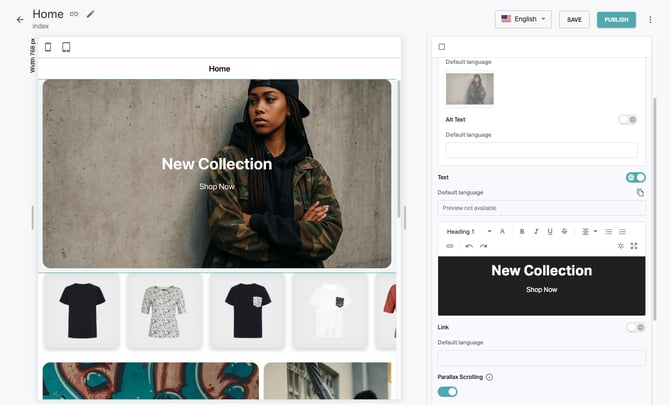
Pages 2.0 is currently being rolled out.
Overview and Favorites
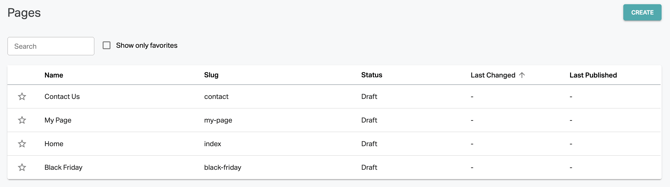
The newly designed Overview page gives you a quick overview of all the pages you've created, as well as the latest changes and publications. The favorites feature lets you mark pages that are particularly relevant so you can access them more quickly in the future.
Create and Manage Pages
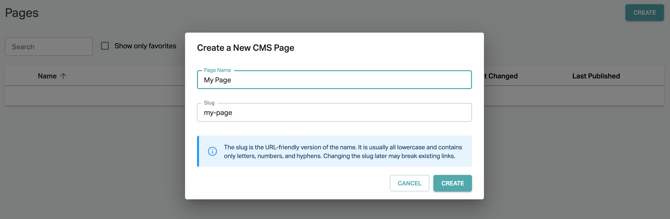
To create a new page, click "Create" in the top right corner of the overview. Enter the page's name and, if necessary, customize the "slug" (the page's internal identifier for links, for example). This information can be customized later. However, if the slug is changed, existing links will no longer work and will need to be adjusted.
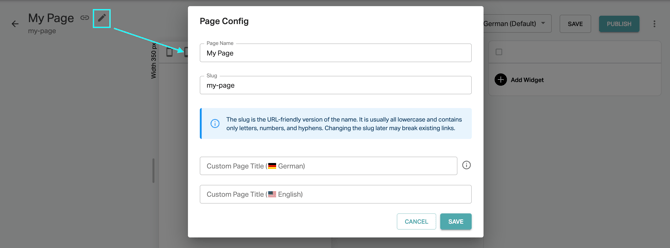
If you would like to give your page individual titles in multiple languages that will be displayed in the app's header, you can do so later using the "Edit" function.
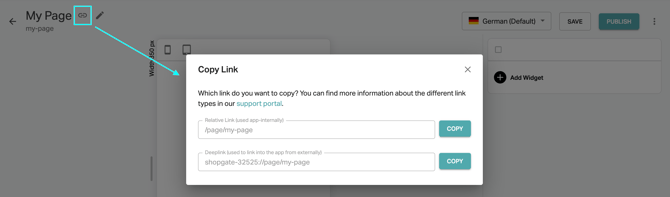
To link to a page, you can copy the corresponding deep link with a single click.
Protected Pages:
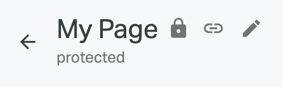
You can prevent important pages from being deleted and keep the deep link (slug) from changing. To do so, open the respective page, click on the three-dot menu, and select "Set page to protected."

Protected pages are marked with a lock icon. You can remove the protection from all pages, except the "index" page, at any time.
Preview and test in the app.
When editing a page in the Shopgate Admin, you will now see a live preview of your app. The preview immediately reflects changes to the configuration on the right side of the screen. You can adjust the preview to all screen widths, allowing you to test responsive content directly in Admin.
Managing page content
To create content for your page, you can use a variety of configurable widgets that you can move using drag and drop. The following general settings are available for all widgets:
- In the "Visibility" tab, you can show or hide widgets and activate them on a time-controlled basis.
- In the "Layout" tab, you can override the default margin of widgets on all pages.
Additionally, each widget has its own individual settings.
Overview of all widgets
| Widget | Options |
|
Hero Banner
|
|
|
Image
|
|
|
Image Slider
|
|
|
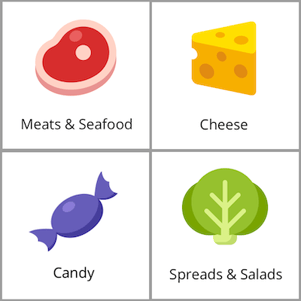
Image Row/Grid
|
|
| Video |
|
| Headline |
|
| Rich Text |
|
|
Button |
|
|
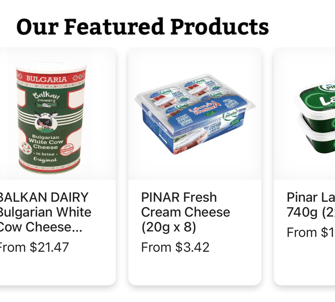
Product Slider
|
|
| Product List |
|
| Category List |
|
| Nested Category Filter |
|
| HTML |
|




Internationalization
Maintaining multilingual content is now easier. In the future, you will first create all content in your default language, and then translate specific content. Use the drop-down menu to switch to the relevant language, then activate the translation switch for the desired content.
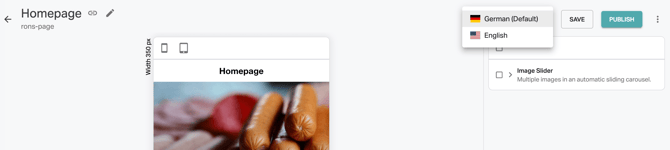
Then, you can easily translate the content.
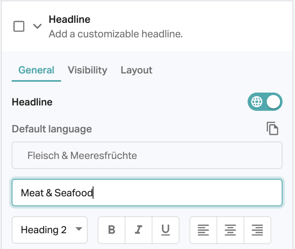
Save and Publish
You can save a page at any time without publishing it immediately. This allows you and your colleagues to continue working on it later or wait for approvals. Your app users will only see the changes once the page has been published.
In-app Preview
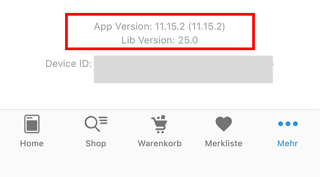
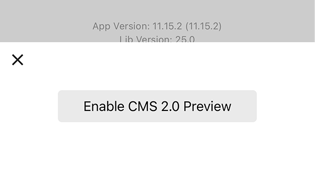
When setting up Pages 2.0, you can ensure a seamless transition for your existing app users. You can easily test the new pages in advance. To do so, open your app, open the menu, and scroll to the bottom. Tap and hold the app version for about five seconds. Your device ID will then be displayed. Then, tap and hold the app version for another five seconds. A menu will appear, giving you the option to activate Pages 2.0 for your device.
Activating the New CMS for Your App Users
Once you have finished configuring the new CMS, the new version can be activated for all users. Let us know when you are ready, and we will switch over to the new CMS so that it is visible to all users.
FAQ:
Can my existing pages be migrated automatically?
This option is available but must be checked on a case-by-case basis. Please contact our support team for more information.
How long will the previous CMS continue to be supported?
The existing CMS will be supported indefinitely but will not receive updates except for critical bug fixes.
Does Pages 2.0 work for mobile websites?
No, Shopgate is no longer developing the mobile website and will not release this update for it. However, you can activate it for your app and maintain the mobile website via the existing system.
Updated: 9 December 2025