
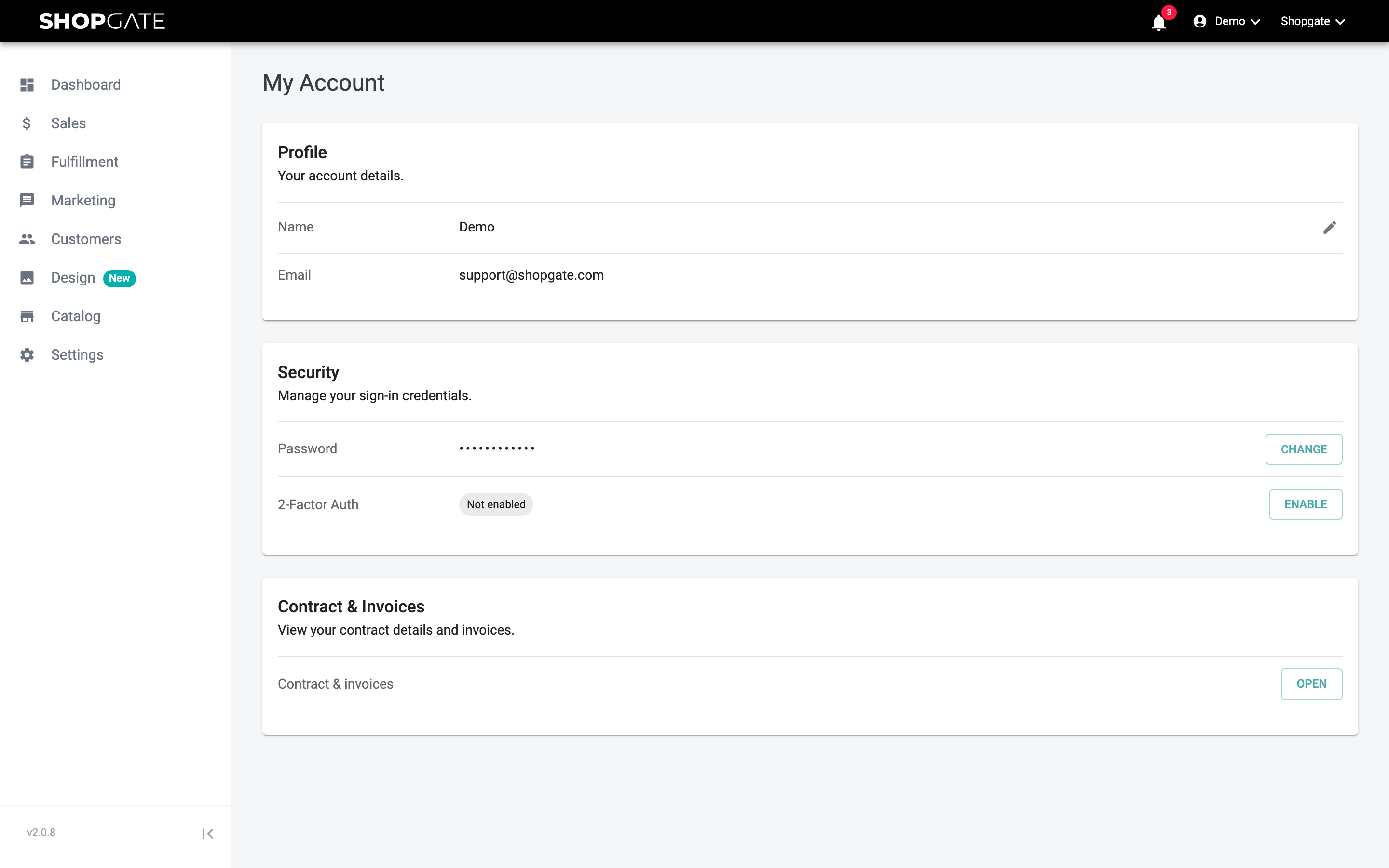
Under My Account, you manage your personal account details, your password and two-factor authentication. To open it, click your name in the top right of the admin and select My Account.
The page is divided into the sections Profile, Security and Contract & Invoices.
Profile
| Detail | Description |
|---|---|
| Name | Your first and last name. Click the pencil icon to open Edit name, change your First name and Last name and click Save. |
| The email address you log in with. It is shown for information only. |
Changing your password
- In the Security section, click Change next to Password.
- Enter your Current password.
- Enter the New password and repeat it under Confirm new password.
- Click Change password.
The dialog shows the requirements the new password must meet.
Enabling two-factor authentication
Two-factor authentication gives your account extra protection. When you log in, you then enter a code from an authenticator app on your smartphone after your password. You can see the status in the Security section next to 2-Factor Auth: Enabled or Not enabled.
- Click Enable next to 2-Factor Auth.
- Enter your password and click Continue.
- Scan the QR code shown with your authenticator app and click Continue.
- Enter the Authentication code from the app and click Verify & activate.
- The admin now shows your recovery codes. Store them in a safe place, for example in a password manager. Click Copy all to copy all codes to the clipboard. Then click Close.
Important: The recovery codes are shown only this one time. You use them to log in if you no longer have access to your authenticator app. Each code can be used only once. To learn how logging in with a code works, see the article Logging in to the Shopgate Admin.
Disabling two-factor authentication
Click Disable next to 2-Factor Auth, enter your password and click Disable 2FA. If you want to use two-factor authentication again later, set it up again as described above.
Contract & Invoices
In the Contract & Invoices section, click Open to view your contract details and invoices. You only see this section if your role has the corresponding permission. Learn more: