
Adding a manual shipping rate
- Log in to your Shopgate admin.
- Click Settings › Shipping.
- Go to the "+Add a rate" drop-down menu and select a shipping method from the list. The list is divided into 2 sections: Automated and Manual. You can find all information about automated shipping in the article about the Shopgate plugin.
- Select a shipping method from the "Manual" section. A pop-up window then opens.
- Configure the shipping rate to suit your needs. Then click Save. The various settings are explained below in this article.
Shipping option settings
Name and description
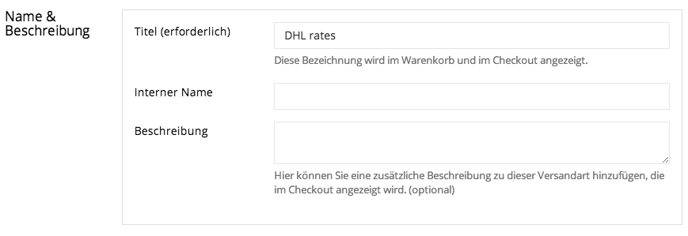
| Shipping title | The name of your shipping rate as shown in your app. |
| Internal name | The internal name is for your information only and is not shown to your customers in your app. |
| Description | The description is visible to your customers in your app. |
Shipping costs
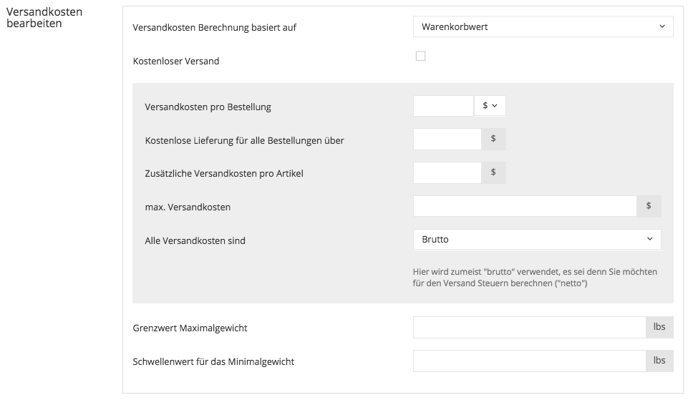
| Calculation of shipping costs is based on | Your shipping costs can be calculated based on the cart value or on the cart value minus coupons. |
| Free shipping on all orders |
Check this box if you want to offer free shipping on all orders in your app. Leave the box unchecked if you want to continue with the shipping cost settings. |
| Set a basic cost for all orders | Set a basic fee for your shipping. Choose € if the value you enter should apply as the actual amount of money. If you choose %, the shipping costs are calculated from the total amount of the order. |
| Free shipping on all orders over... | Your customers get free shipping when they place an order above a value you specify. |
| Additional shipping costs per article | Set additional shipping costs for individual products. This fee is charged per item (also when a product is ordered several times) on top of the basic shipping costs. |
| Maximum shipping costs | Set a value for the maximum shipping costs. |
| All shipping costs are… | Set this field to net if you want to charge additional fees on your deliveries. If the amount is the total shipping cost, select gross. |
| Maximum weight threshold | Set a value for the maximum weight you ship from your app. If you don't want to use this feature, leave the field empty. |
| Minimum weight threshold | Set a value for the minimum weight you ship from your app. If you don't want to use this feature, leave the field empty. |
Additional options
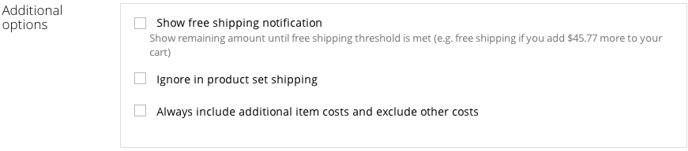
| Show free shipping notification | If you have set a value from which your deliveries are shipped free of charge, this note shows your customers the difference between their current cart value and the value from which delivery is free. |
| Ignore in-product-set shipping | If you have set individual shipping costs per product, check this box to turn this feature off. |
| Always include additional item costs and exclude other costs | If you check this box, the "Set a basic cost for all orders" settings are turned off. |
Splitting deliveries above a certain weight

| Split the package if it weighs more than... | Set a threshold in grams above which the package is split into several deliveries. |
Additional fees based on weight
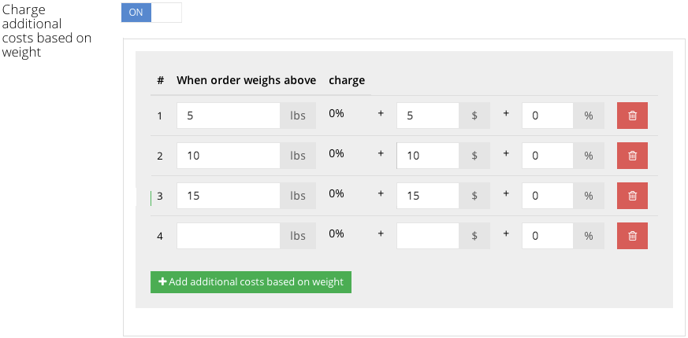
| Charge additional costs based on weight |
With this setting, you can define additional shipping costs that are calculated by weight. They are added to the "Set a basic cost for all orders" amount. In the example above, the shipping costs are:
|
Additional fees based on order value
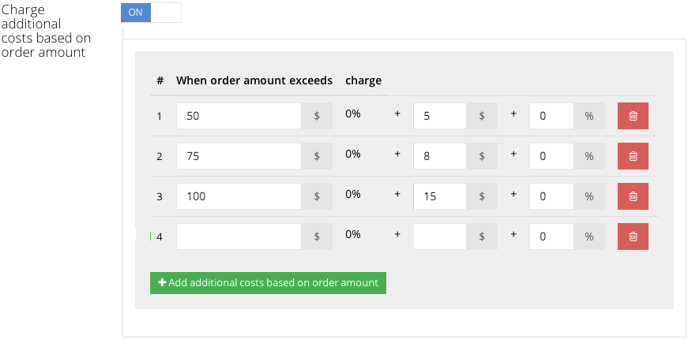
| Charge additional costs based on order amount |
With this setting, you can define additional shipping costs that are calculated by order value. They are added to the "Set a basic cost for all orders" amount. In the example above, the shipping costs are:
|
Delivery countries
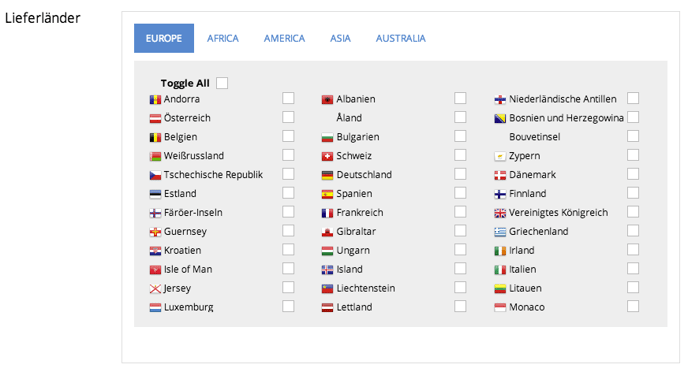
| Delivery countries | Select all countries your settings should apply to. Use the tabs to switch between continents. |
Once you have finished, your manually maintained shipping costs are active for your app. Repeat this for every other shipping method you need.