
What is a smart banner?
A smart banner is a banner that points mobile shoppers in your online store to your app. It usually appears at the very top of the store and links to the relevant app store.
Example: IKEA app
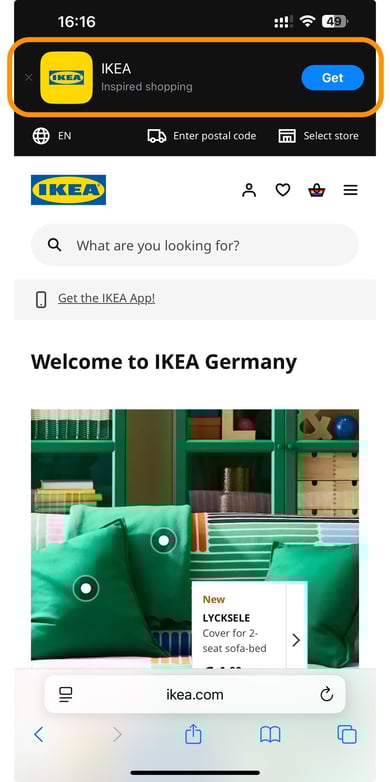
There are several ways to add a smart banner to your online store.
1. Banners from Apple and Google
Apple and Google each offer their own solution for adding a smart banner. However, these only work with their own browser technologies (Safari and Chrome respectively) and cannot be customized.
1.1 Apple
The Apple Developer documentation describes how to add the banner. This option is very simple. You just need to add the following tag to your store frontend:
<meta name="apple-itunes-app" content="app-id=myAppStoreID, app-argument=myURL">
Replace "myAppStoreID" with your own App Store ID. Where to find it is described at the end of this article. The "app-argument" is optional and only serves as a reference to the download source. For example, you can enter your store URL here.
1.2 Google
Here too, you can find all the information you need in Google's developer documentation. This integration is a bit more complex than Apple's. Basically, a so-called "Web App Manifest" has to be stored on your server so that Google associates the app with your store. The following part of the manifest is particularly relevant:
"related_applications": [
    {
        "platform": "play",
        "id": "com.google.samples.apps.iosched"
    }
]
The "id" must match your app. Where to find it is described at the end of this article.
2. JavaScript-based smart banner
A JavaScript-based banner has the advantage that it covers both platforms and more browsers at the same time. This option also lets you customize more. Shopgate provides a banner template that you can use and customize as you like:
/** Configuration **/

var appIconImg = "https://www.myshop.com/icon.png";
var appIconAltText = "My Icon Text";
var iosAppLink = "https://itunes.apple.com/us/app/xyz/id123456789?ls=1&mt=8";
var androidAppLink = "https://play.google.com/store/apps/details?id=com.my.app";
var appName = "My App";
var appDescription = "My App Description";
var downloadButtonText = "View";
var bannerBackgroundColor = "#262729";
var bannerTextColor = "#ffffff";
var downloadButtonColor = "#3288ff";
var downloadButtonTextColor = "#ffffff";

/*******************/

var isAndroid = /android/i.test(navigator.userAgent);

function closeAppBanner() {
    var sgSmartBanner = document.getElementById("sg-smartbanner");
    if (sgSmartBanner) {
        sgSmartBanner.parentNode.removeChild(sgSmartBanner);
        try {
            localStorage.setItem("hideSmartBanner", "true");
        } catch (e) {
            console.warn('Local storage not supported', e);
        }
    }
}

function isMobileDevice() {
    var userAgent = navigator.userAgent || navigator.vendor || window.opera;
    return /android|iPhone|iPad|iPod/i.test(userAgent);
}

function getAppLink() {
    return isAndroid ? androidAppLink : iosAppLink;
}

function shouldShowBanner() {
    try {
        return !localStorage.getItem("hideSmartBanner") && isMobileDevice();
    } catch (e) {
        return isMobileDevice();
    }
}

function insertSmartBanner() {
    if (!shouldShowBanner()) return;

    var sgSmartBanner = document.createElement("section");
    sgSmartBanner.id = "sg-smartbanner";
    sgSmartBanner.style.cssText = "display: flex; align-items: center; max-width: 100%; width: 100%; height: auto; overflow: hidden; font-family: 'SF Pro Text', 'Helvetica Neue', Helvetica, Arial, sans-serif; background-color: " + bannerBackgroundColor + "; color: " + bannerTextColor + "; z-index: 99999; margin: 0 auto; padding: 8px 8px 8px 0; box-shadow: 0px 4px 6px rgba(0,0,0,0.1); ";
    sgSmartBanner.setAttribute("role", "banner");
    sgSmartBanner.setAttribute("aria-live", "polite");
    sgSmartBanner.setAttribute("aria-label", appName + " notice banner");

    // Close button
    var closeButton = document.createElement("button");
    closeButton.id = "close-banner-btn";
    closeButton.setAttribute("aria-label", "Close app banner");
    closeButton.innerHTML = "✕";
    closeButton.style.cssText = "background:none;border:none;color:#777;font-size:20px;cursor:pointer;padding:0 10px;";
    closeButton.onclick = closeAppBanner;

    // App icon
    var appIcon = document.createElement("div");
    appIcon.style.cssText = "flex: 0 0 60px; margin-right: 10px;";
    var appIconImgTag = document.createElement("img");
    appIconImgTag.src = appIconImg;
    appIconImgTag.alt = appIconAltText || appName + " App Logo";
    // appIconImgTag.style.cssText = "width: 100%; border-radius: 12px; border: 1px solid #e4e0e0;";
    appIconImgTag.style.cssText = "width: 60px; height: 60px; object-fit: cover; border-radius: 12px; border: 1px solid #e4e0e0; display: block;";
    appIcon.appendChild(appIconImgTag);

    // App info
    var appInfo = document.createElement("div");
    appInfo.style.cssText = "flex: 1; line-height: 1.2; font-size: 15px; padding-left: 10px;";
    var appNameTag = document.createElement("span");
    appNameTag.style.fontWeight = "bold";
    appNameTag.innerHTML = appName;
    var appDescriptionTag = document.createElement("span");
    appDescriptionTag.style.cssText = "color: #8e8e93; font-size: 13px;";
    appDescriptionTag.innerHTML = "<br />" + appDescription;
    appInfo.appendChild(appNameTag);
    appInfo.appendChild(appDescriptionTag);

    // Download button
    var downloadButton = document.createElement("div");
    downloadButton.style.cssText = "flex: 0 0 auto; margin-left: auto;";
    var downloadLink = document.createElement("a");
    downloadLink.href = getAppLink();
    downloadLink.setAttribute("aria-label", "Open " + appName + " in " + (isAndroid ? "Google Play" : "the App Store"));
    downloadLink.target = "_blank";
    downloadLink.style.cssText = " background-color: " + downloadButtonColor + "; color: " + downloadButtonTextColor + "; font-size: 16px; padding: 8px 16px; border-radius: 6px; text-decoration: none; ";
    downloadLink.innerHTML = downloadButtonText;
    downloadButton.appendChild(downloadLink);

    // Append elements
    sgSmartBanner.appendChild(closeButton);
    sgSmartBanner.appendChild(appIcon);
    sgSmartBanner.appendChild(appInfo);
    sgSmartBanner.appendChild(downloadButton);

    var firstElement = document.body.firstElementChild;
    // var sgInsertPoint = document.getElementById('header');
    // var sgInsertPoint = document.getElementsByClassName('header')[0];

    document.body.insertBefore(sgSmartBanner, firstElement.nextSibling);
    // sgInsertPoint.parentNode.insertBefore(sgSmartBanner, sgInsertPoint);
}


function initSmartBanner() {
    setTimeout(insertSmartBanner, 100);
}


if (document.readyState === "loading") {
    document.addEventListener("DOMContentLoaded", initSmartBanner);
} else {
    initSmartBanner();
}
In this script, a few placeholders (shown in bold here) need to be replaced so that the banner works as intended:
App Icon: e.g. "https://www.myshop.com/icon.png";
Apple App Link: e.g. "https://itunes.apple.com/us/app/xyz/id123456789?ls=1&mt=8";
Google App Link: e.g. "https://play.google.com/store/apps/details?id=com.my.app";
You can also adjust texts and colors using the other items under "Configuration". The next step shows you where to find the data you need.
3. Your own banner or landing page
In addition to the banners above, you can of course also create your own banners or landing pages in your store CMS and link to your apps directly. Usually, all you need for this are the links to the apps.
Apple offers extensive resources such as banners, links and QR codes for your app here.
Google offers Play Store logos and device images here.
Tip: With the "App Store Optimization" package, Shopgate can also provide individual screenshots of your app. Just get in touch with us.
Where do I find the data I need?
General:
- You can take the app icon for the Shopgate banner directly from the Shopgate Admin. Simply use the link "https://shopgate-public.s3.amazonaws.com/shops/25601/a.png" and replace "25601" with your own shop ID. You can find it at the end of the URL on all pages of your Shopgate Admin.
Apple:
- Apple App Link: Simply search for your app on Google with "app name" + "app". The app is usually among the top 3 results. Alternatively, you can use the Apple Marketing Toolbox.
- App ID: You can copy it from the link to the app. The ID always has this format: "id123456789"
Google:
- Google App Link: Simply search for your app on Google with "app name" + "app". The app is usually among the top 3 results.
- App ID: You can copy it from the link to the app. The ID always has this format: "com.myappname.app"