
Getting started
What is the "More" menu?
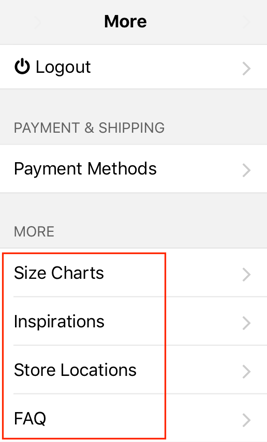
The "More" menu is meant for adding extra information pages to your apps.
The entries can link to a page you created beforehand in your Shopgate Admin (previously called a CMS page), or to a page with the location of your store(s).
Where is the "More" menu shown?
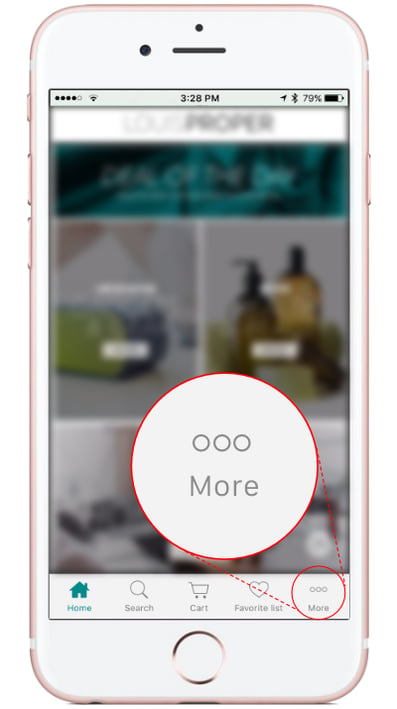
The entries in the "More" menu are shown in your apps.
On Android devices, the entries are shown via the menu icon (three lines) in the top left. On iOS, open the menu via "More" in the bottom right.
Adding a menu entry
To add an entry to the "More" menu, follow these steps:
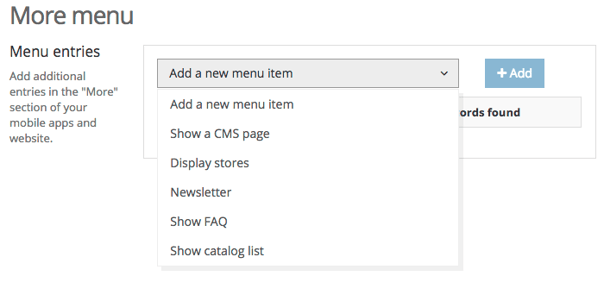
- Log in to your Shopgate Admin and go to Design › Menu.
- Select an entry from the drop-down list and click +Add. Please note that the content for the entry must be configured beforehand before you can add it.
Linking (CMS) pages
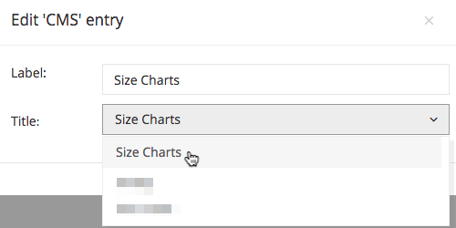
You can link an entry to any page* that was created beforehand with the Shopgate widget system.
| Linking |
To link a page in the "More" menu, follow these steps:
|
|
| Configuration |
You can create CMS pages in your Shopgate Admin:
|
Display stores
You can link an entry to the location of your store(s). Together with an installed maps app, your customers can then easily navigate to your store.
| Linking |
To link to your location(s) in the "More" menu, follow these steps:
|
|
| Configuration |
You can create and edit a location for your store(s) in your Shopgate Admin under Settings › Stores. |
Frequently Asked Questions
What can I do if the menu entries I created are not shown?
If a new menu entry is not shown or does not update, clear your shop cache once.
Changes do not always take effect immediately in your apps. Close the app completely and restart it after about 20 minutes.